The editor saves automatically as you type – which is handy, until it isn't. If the wrong section gets deleted or text is accidentally overwritten, the change is already saved before you notice. Until now, there was no way to recover from this – just the tedious task of rebuilding manually. On top of that, the editor never indicated whether a change had actually been saved: it simply happened in the background, successfully or not.
What's new
Save status in the header: The editor now shows whether the last change was successfully saved, and clearly reports when a save fails, rather than leaving you in the dark.
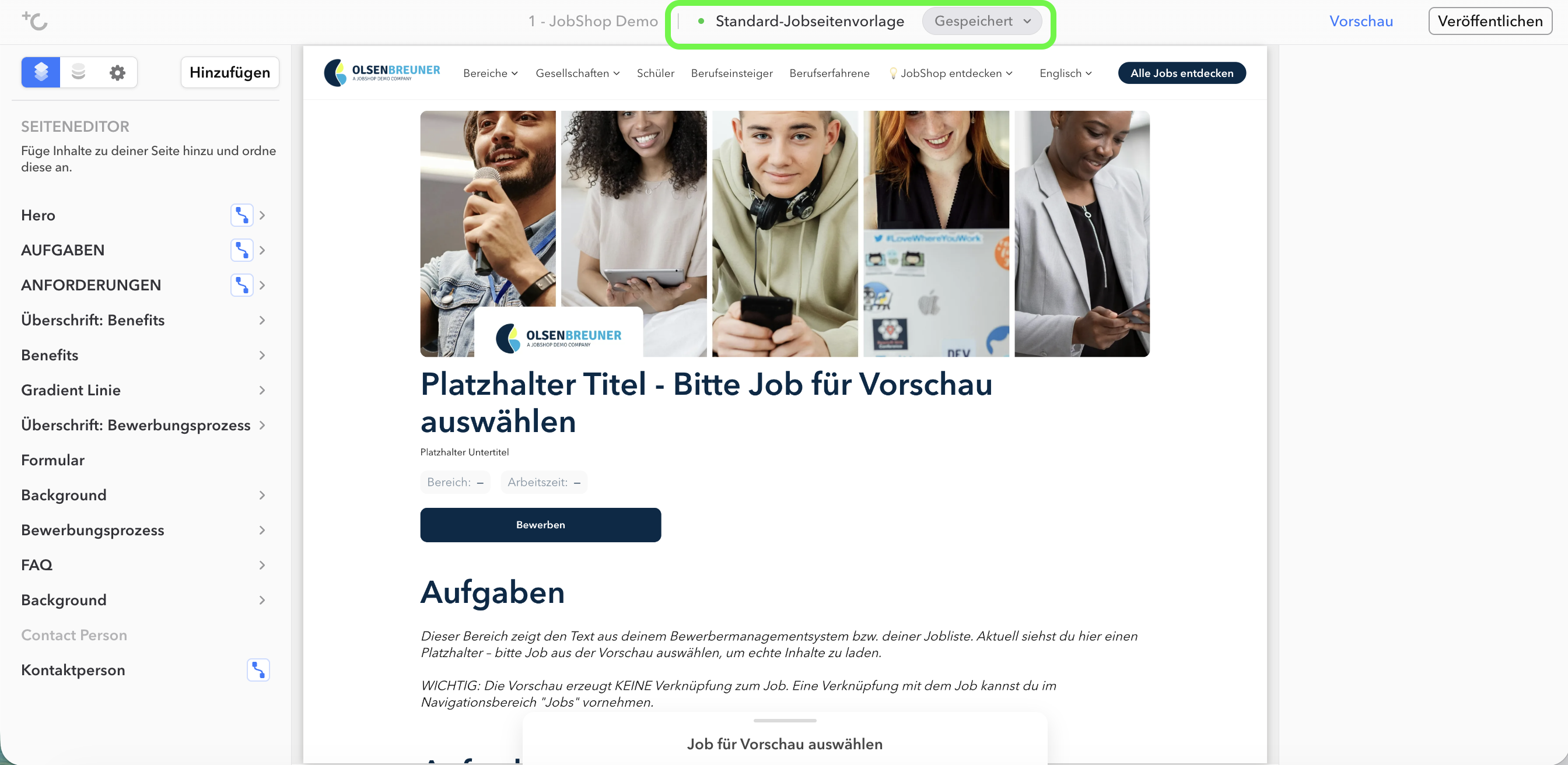
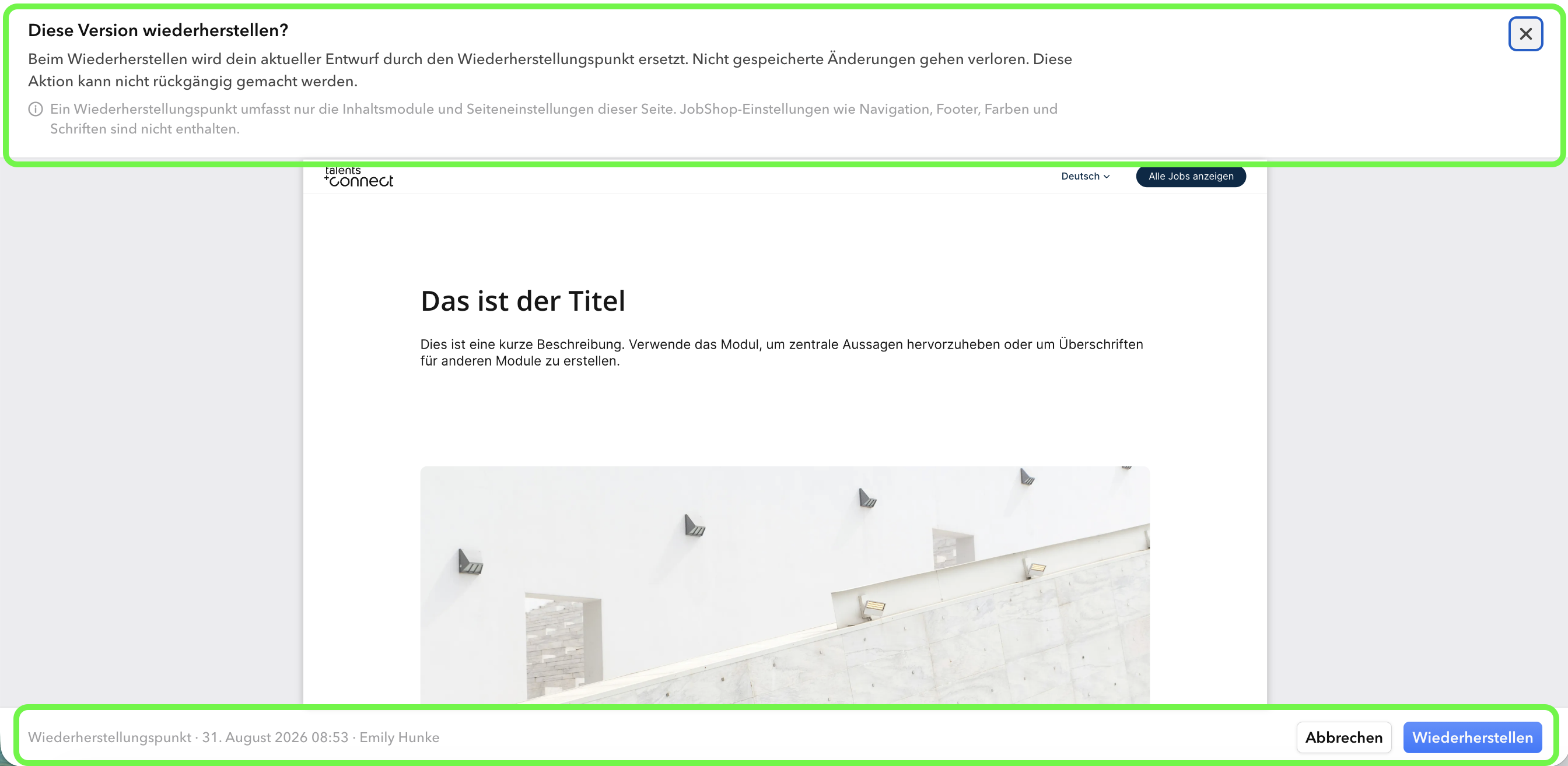
Recovery point: Before making a risky change, you can create a snapshot of the draft. There is one recovery point per page, including the time and the person who created it. A new snapshot replaces the old one – you will be asked before this happens. Restoring does not consume the snapshot; it can be used as many times as needed.
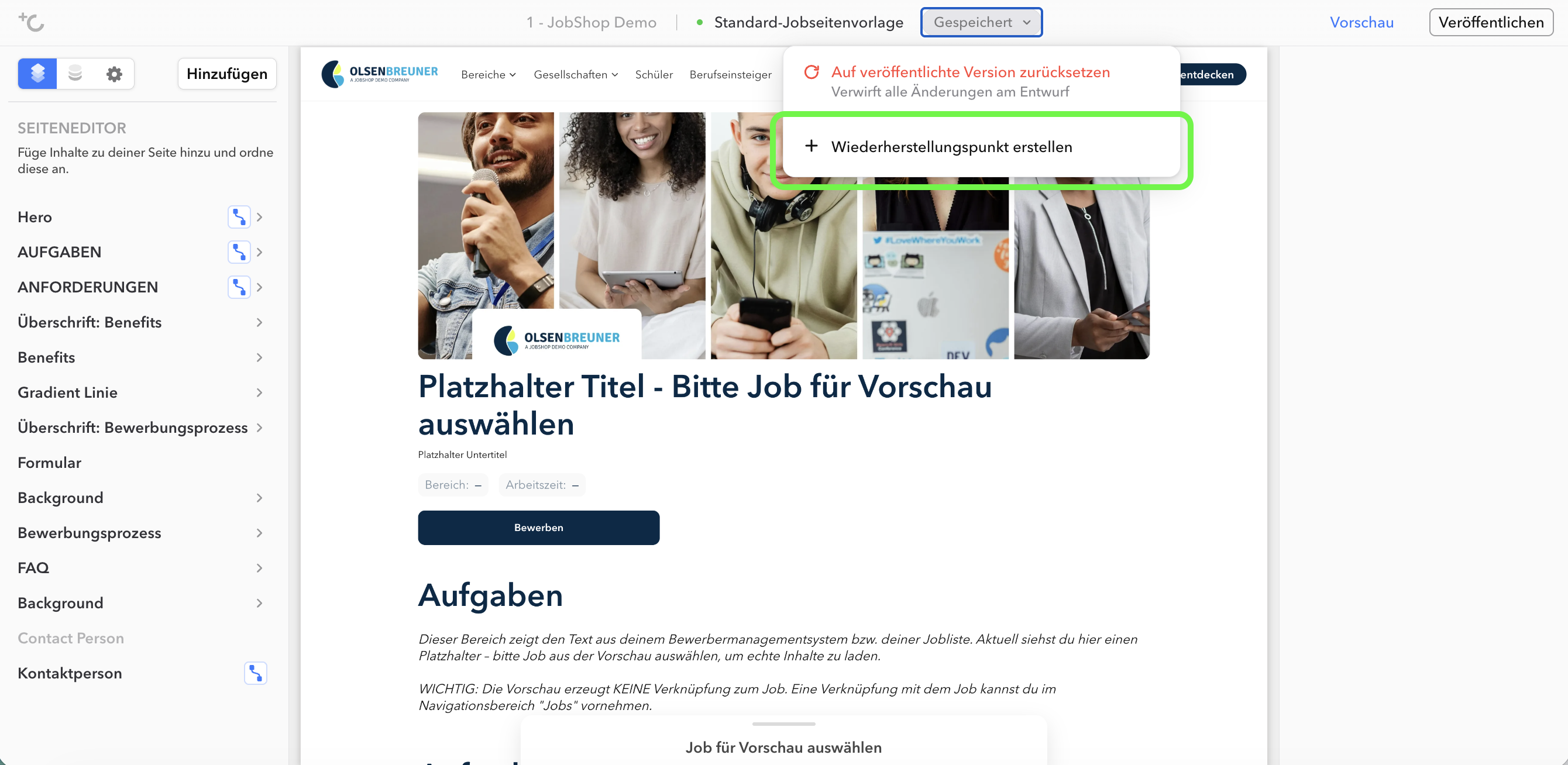
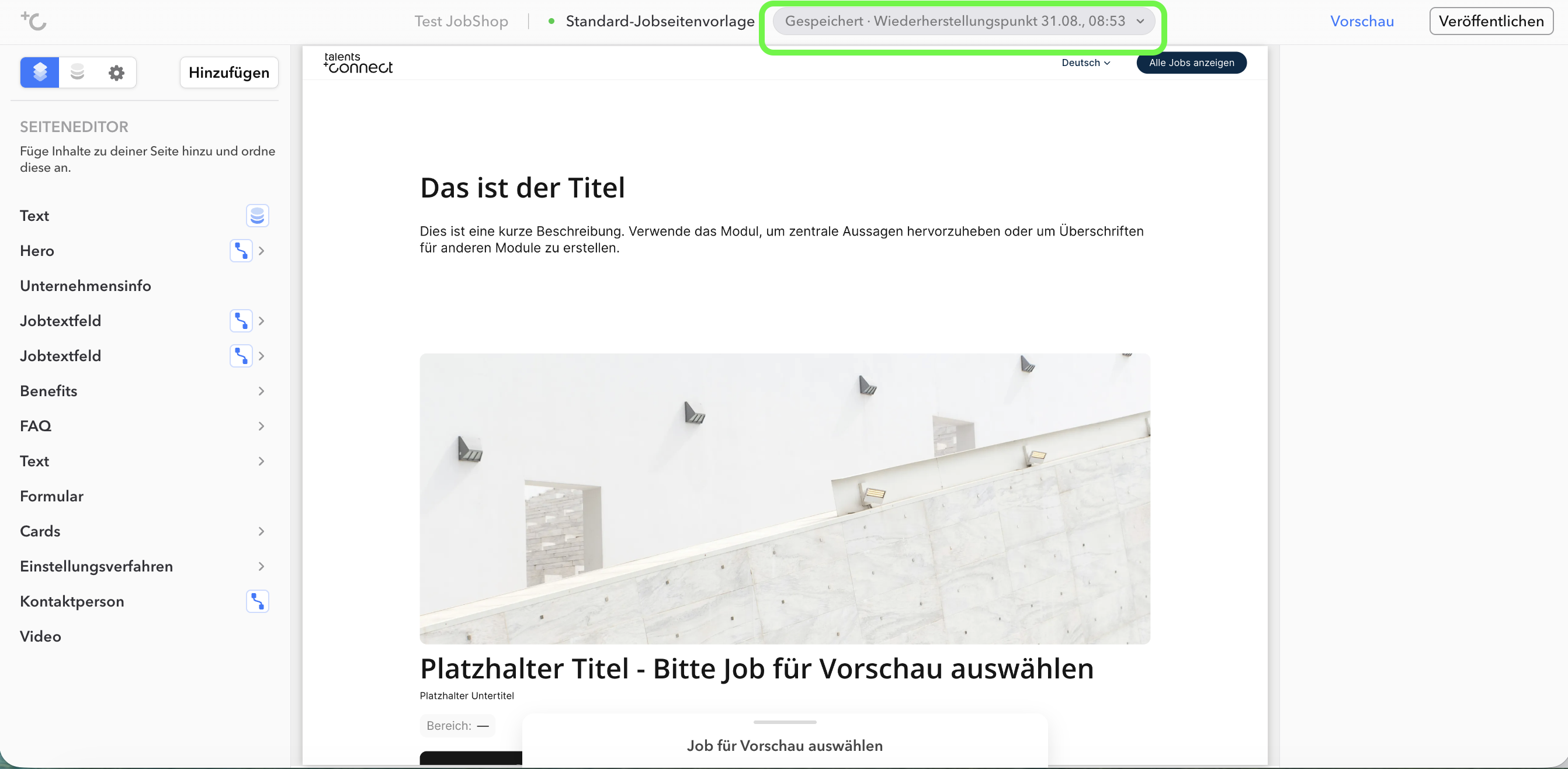
Recovery point preview: Clicking "Restore to recovery point" opens the saved version in full screen and read-only mode, so you can check whether it is the right version before committing. The replacement only takes place after confirmation.
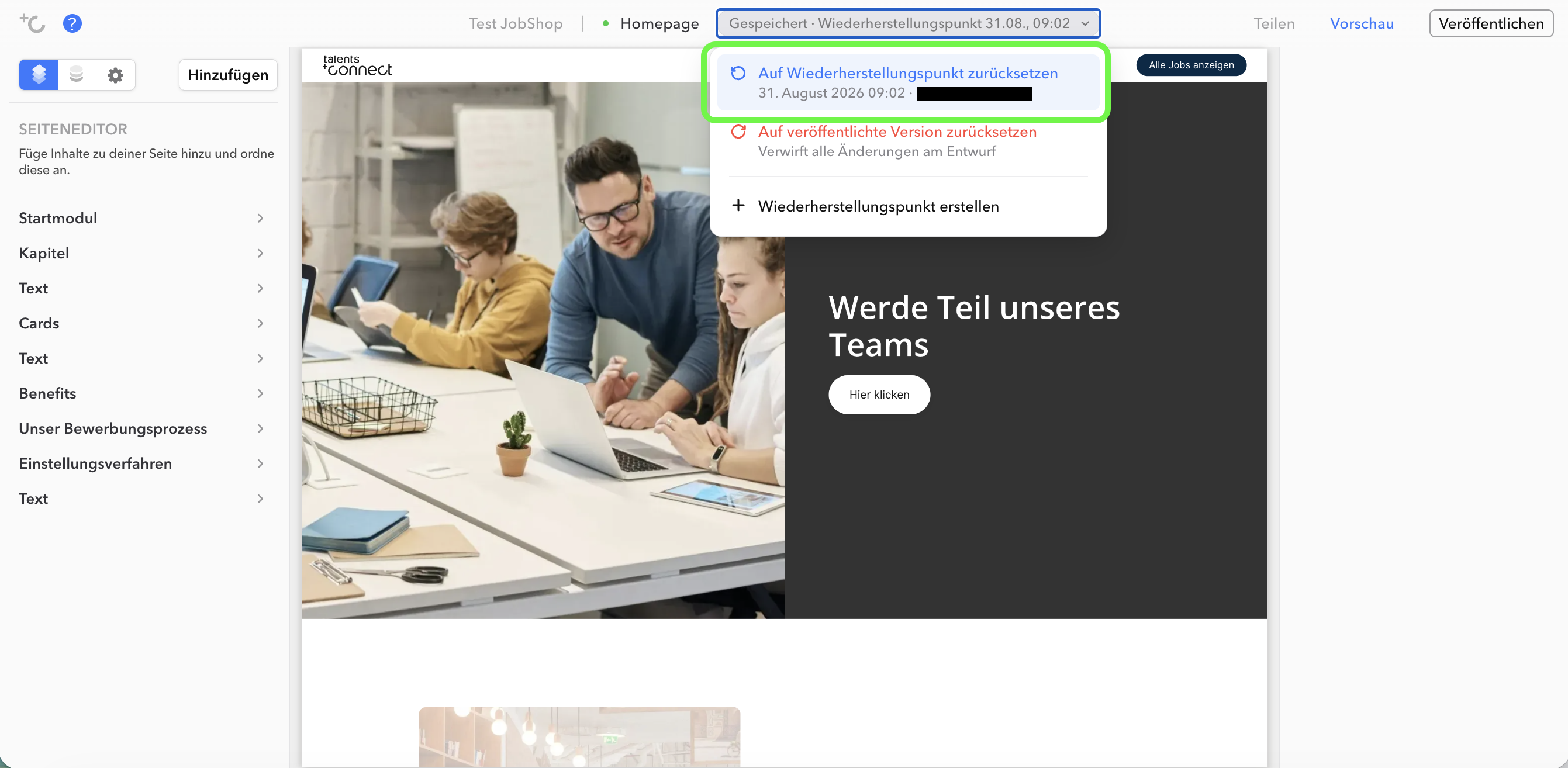
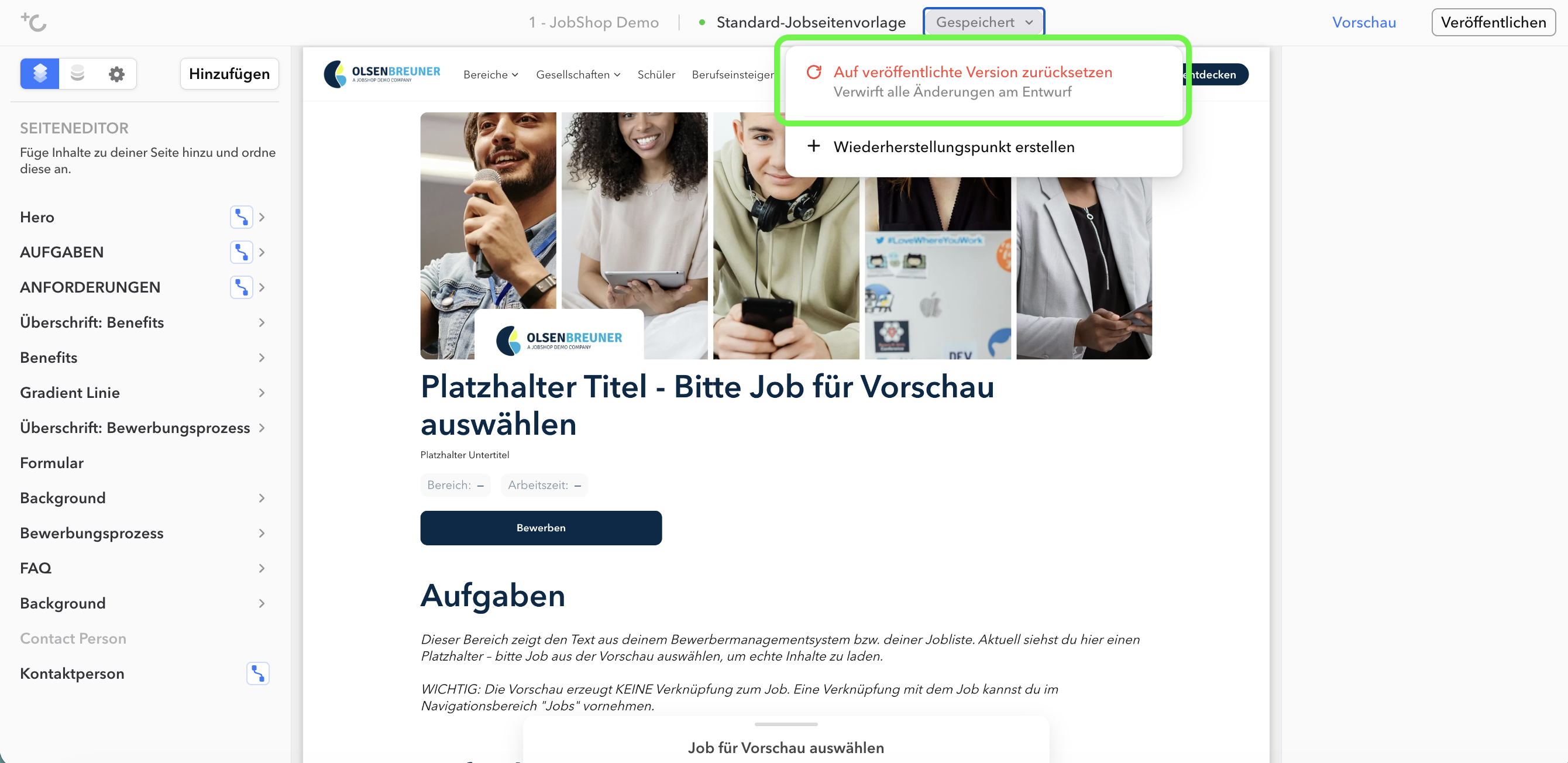
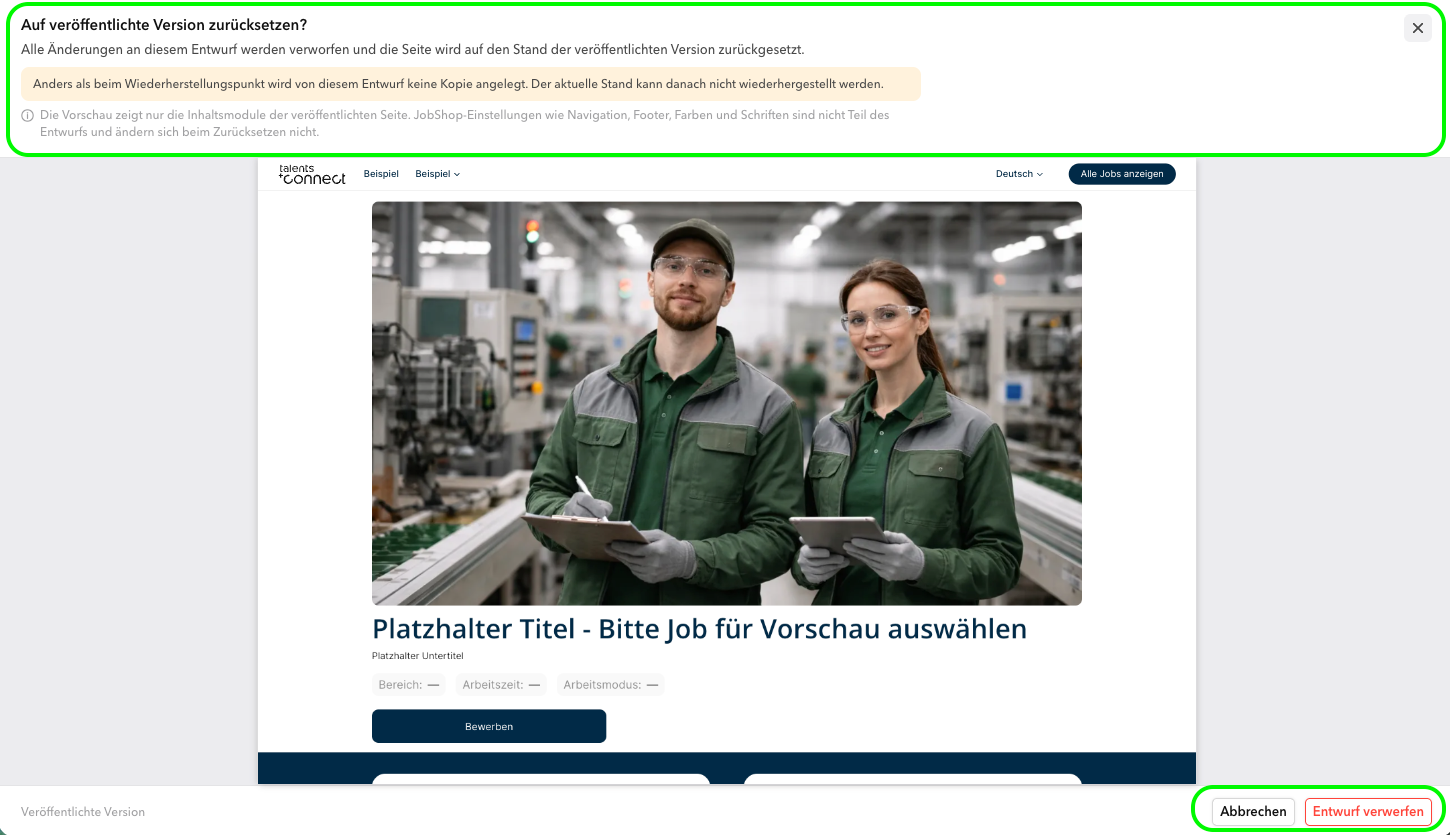
Revert to published version: Discards all unpublished changes and resets the draft to the currently live version. This option is only available for pages that have already been published, as there would otherwise be nothing to revert to.
Preview of the published version: Here too, the saved version opens in full screen and read-only mode, so you can check whether it is the right version before committing. The replacement only takes place after confirmation.
Good to know
- This is a single snapshot, not a version history. There is exactly one recovery point per page – one step back, not a searchable timeline.
- It applies to the page, not the entire JobShop. A recovery point saves the page content and page settings. JobShop-wide settings such as navigation, footer, colors, and fonts are not included and are not affected by a restore.
- Only the person currently editing sees the actions. The editor assigns an editing lock per page. Only whoever holds that lock can create and restore snapshots – everyone else can see the status, but not the controls.
As of: August 2026 ✦ Language: English
Was this article helpful?
That’s Great!
Thank you for your feedback
Sorry! We couldn't be helpful
Thank you for your feedback
Feedback sent
We appreciate your effort and will try to fix the article