Start Module
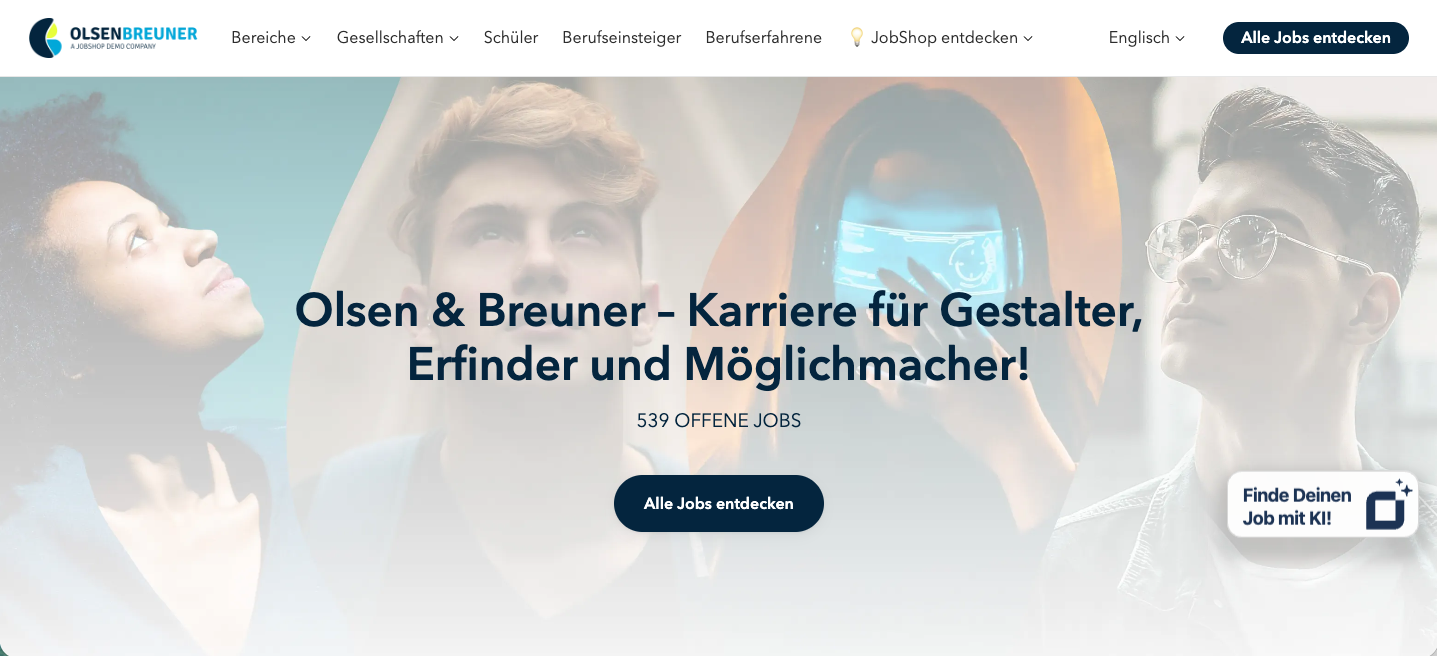
The first module on a page. Through a call-to-action and a free-text search, candidates have the option to specify their job search.
The module – what it can look like
You select the Start module – like all other modules – via the "Add" button. There you can choose between different templates. The Start module templates differ in design, for example in alignment.
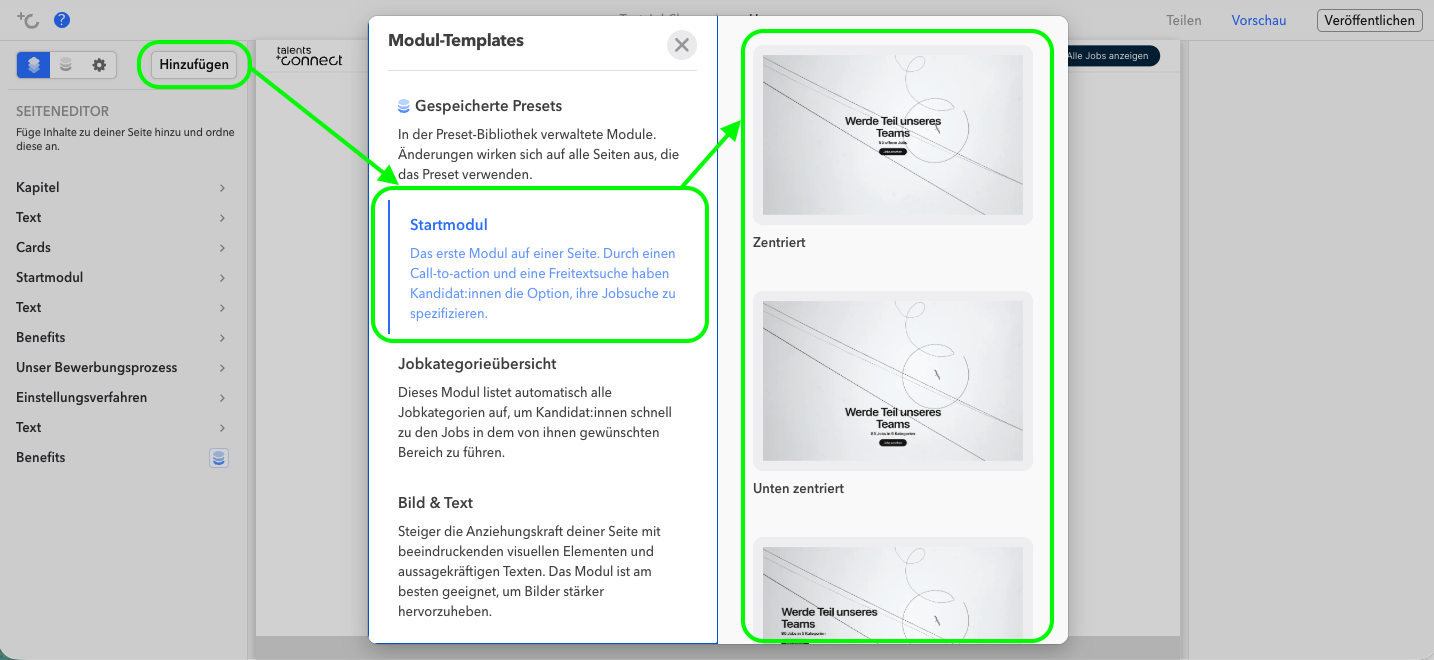
Templates
| Template Name | Preview |
|---|---|
| Centered |  |
| Bottom centered |  |
| Left-aligned |  |
| Bottom left |  |
| Left split |  |
| Right split |  |
| Left floating |  |
| Right floating |  |
Settings
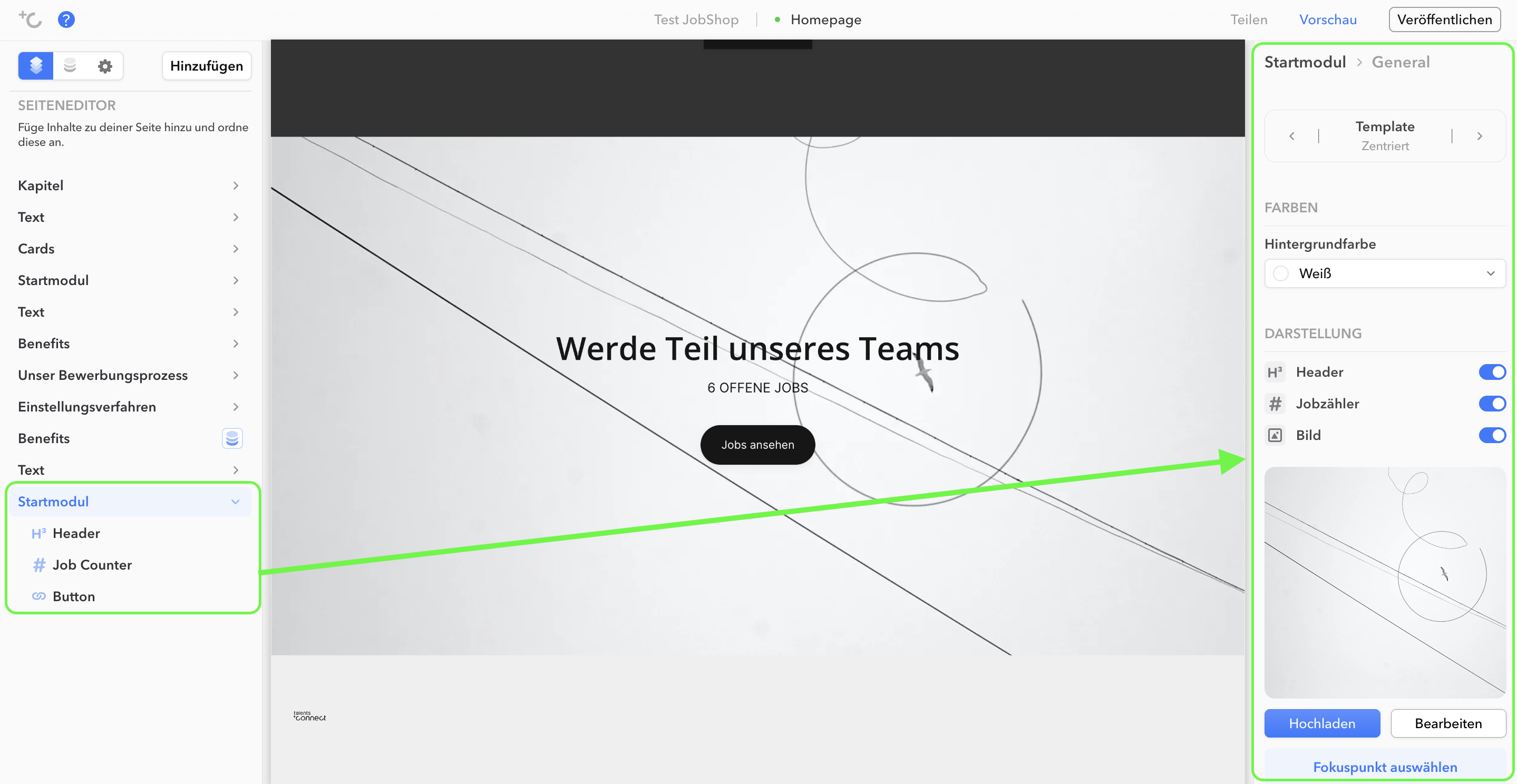
In the left-hand column of the editor, you can choose whether you want to change the global settings (under "Start module") or the individual sub-items of the Start module. The respective editing then takes place in the right-hand column.
FAQ
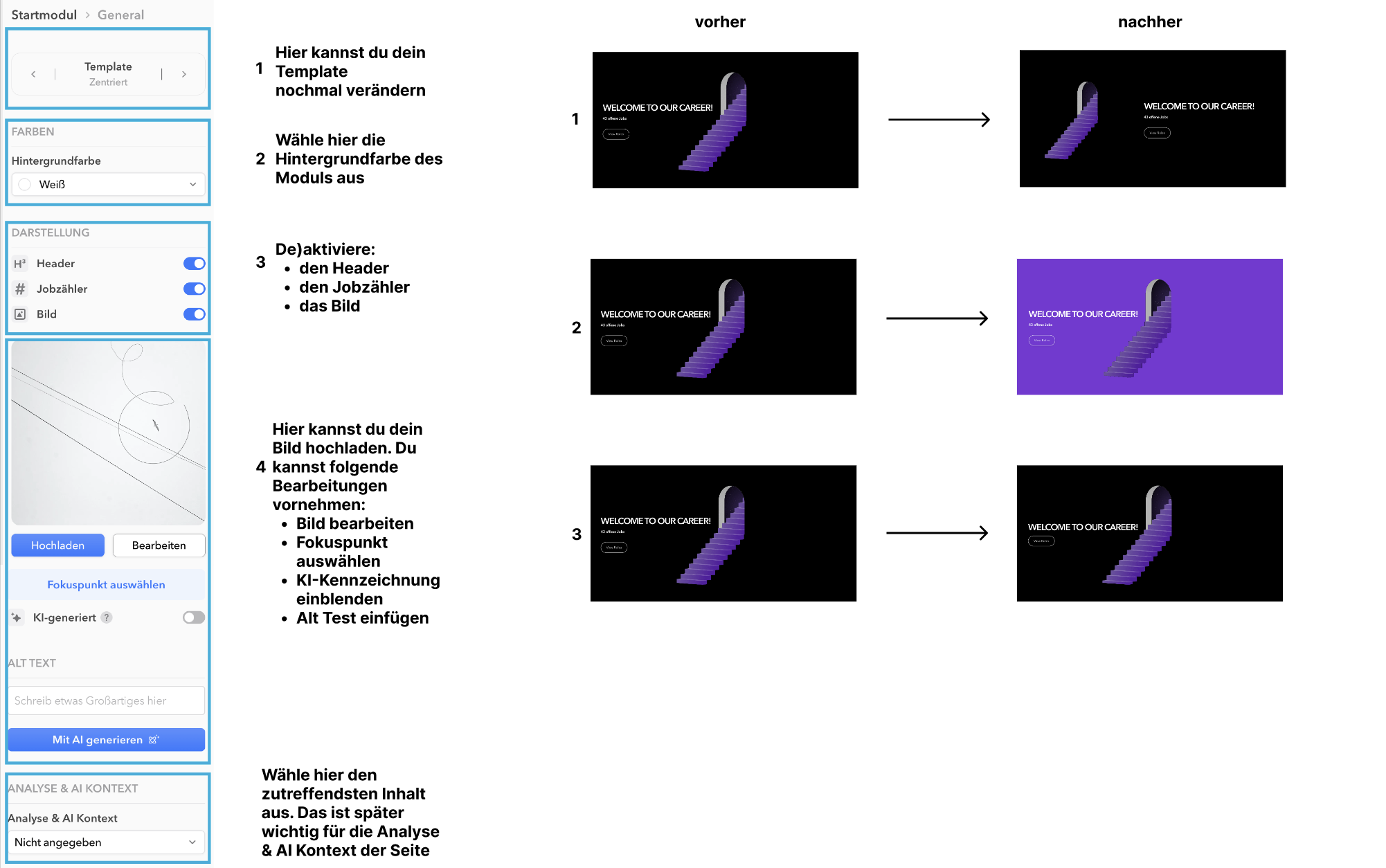
Start module: Global settings
Note: Labeling AI-generated images
You can find more information in the article Labeling AI-generated images.
Last updated: July 2026 ✦ Language: English
Was this article helpful?
That’s Great!
Thank you for your feedback
Sorry! We couldn't be helpful
Thank you for your feedback
Feedback sent
We appreciate your effort and will try to fix the article