With rule-based template assignment, you can define conditions for each of your job page templates. Based on these conditions, jobs imported from your ATS are automatically matched to the appropriate template.
The Page Manager: Job Detail Pages
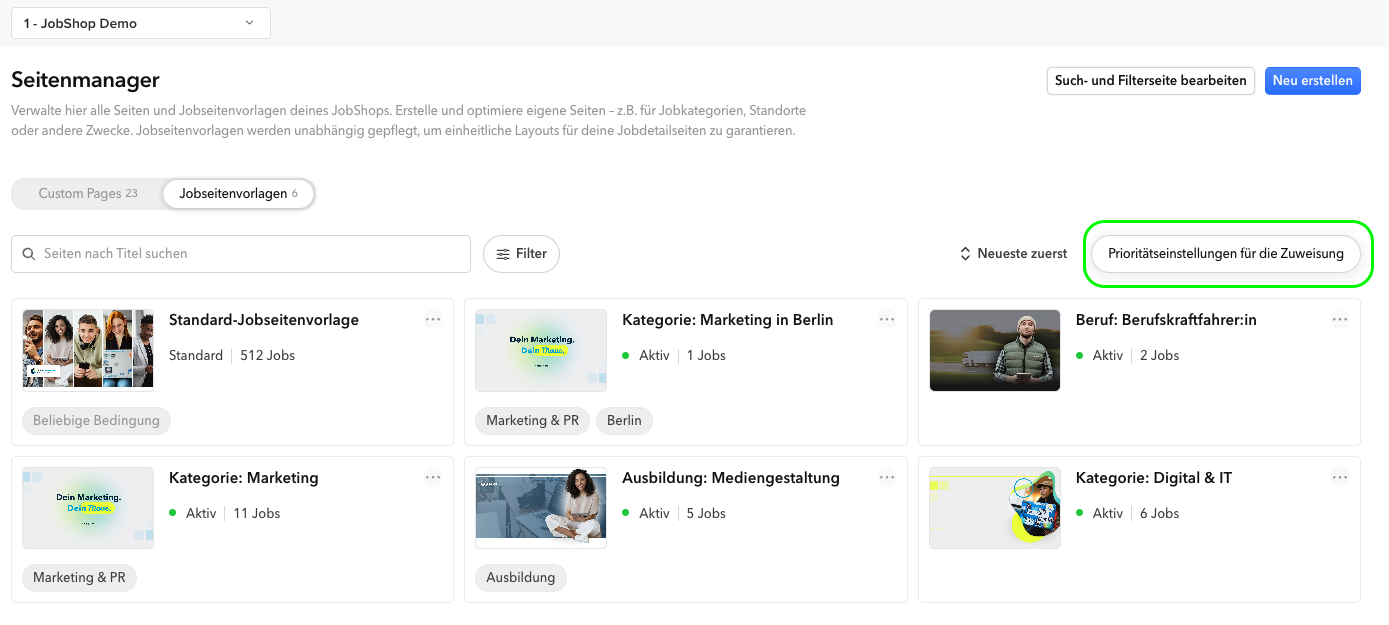
In the Job Detail Pages overview, you can see all your templates. For each job page template, you can directly see how many jobs are assigned to it and which rules apply.
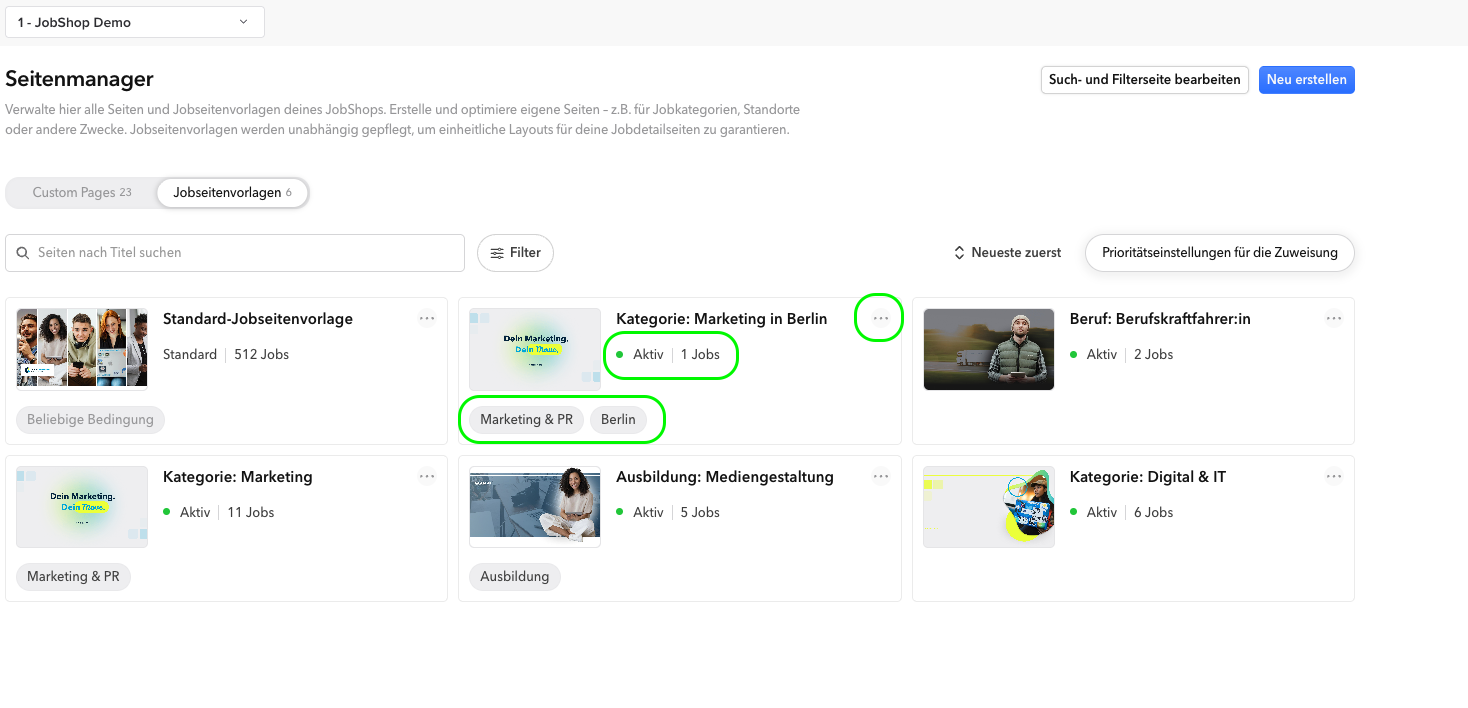
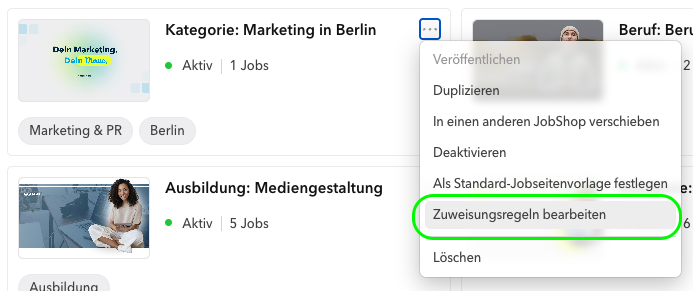
Via the "..." menu of a job page template, you can edit the assignment rules and view more detailed information.
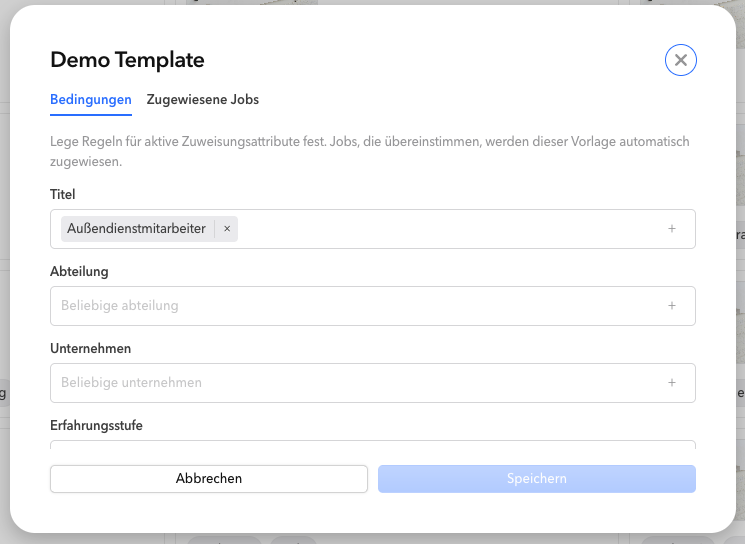
Setting Conditions for a Template
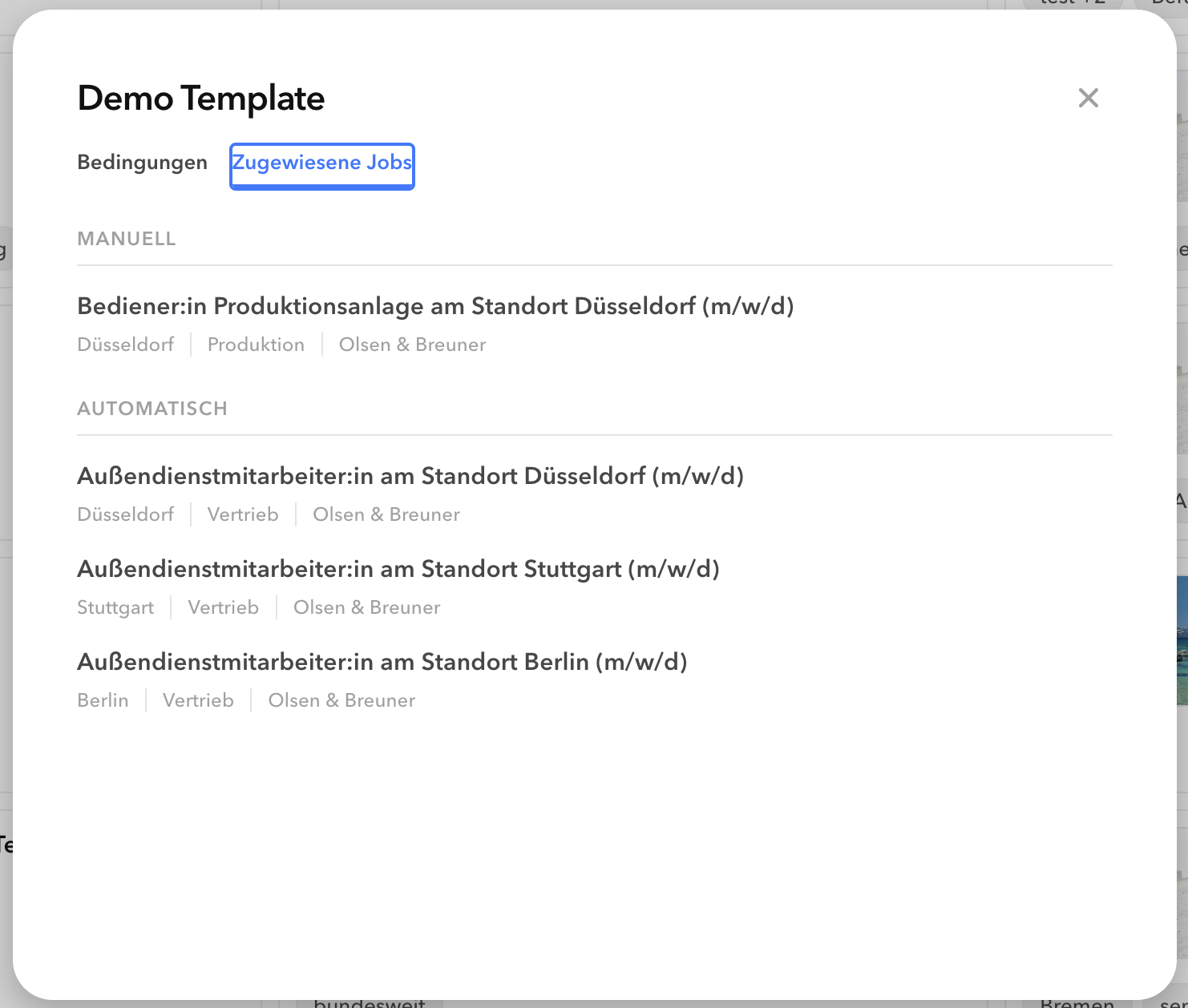
Check the "Assigned Jobs" section to see which jobs are now assigned to this job page template. There you can see which jobs you assigned manually and which were assigned automatically through the template's rule assignment.
How Multiple Conditions Work Together
| Case | Logic | Example |
|---|---|---|
| Different attributes | AND logic | Location "Berlin" AND company "Olsen & Breuner GmbH" – the template only applies if both conditions are met. |
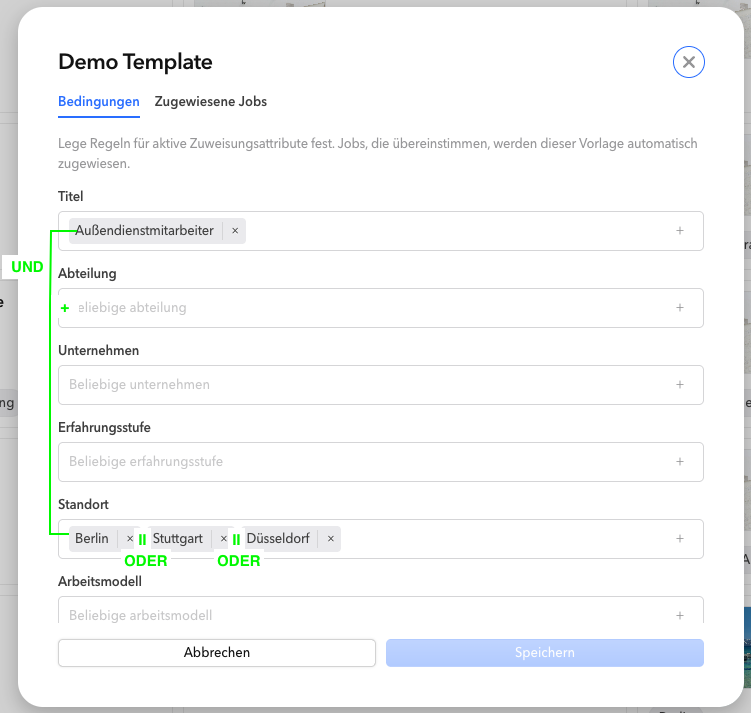
| Multiple values of the same attribute | OR logic | Location "Berlin" or "Stuttgart" or "Düsseldorf" – the template applies to jobs in all three cities. |
Both principles can be combined, for example: title "Field Sales Representative" AND location "Berlin" or "Stuttgart" or "Düsseldorf" – applies to field sales jobs in all three cities.
Conflict Resolution: Which Template Wins?
If a job matches the conditions of multiple templates, two rules determine, in this order, which template is applied:
1. The more specific template wins
Specificity is based on the number of attributes used as conditions. A template with two attribute conditions is more specific than one with only one.
Template A: Location "Berlin" or "Hamburg"
Template B: Industry "Manufacturing" AND location "Berlin" or "Hamburg"
→ Template B wins, because it uses more attributes.
2. If specificity is equal, attribute priority decides
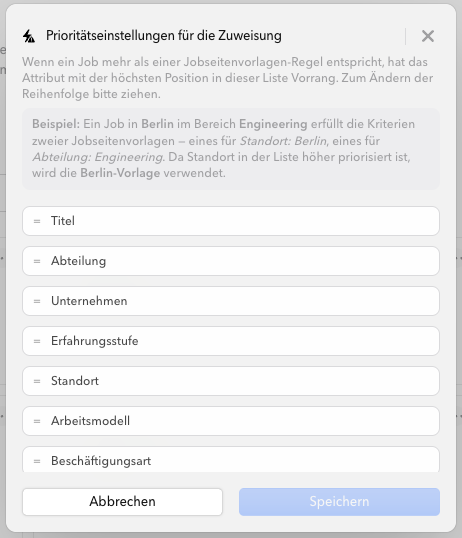
You maintain a prioritized list of your attributes (via drag & drop). If two templates are equally specific, the template whose highest-ranking attribute is higher up in the priority list wins.
Template A: Company "Olsen-Breuner" AND location "Berlin"
Template B: Industry "Manufacturing" AND location "Berlin"
Both templates use two attributes – equal specificity. If "Company" ranks higher than "Industry" in the priority list, Template A wins.
You can access the priority list via the button in the top right of the page overview ("Priority settings for assignment").
The priority settings look like this – change the order via drag and drop to prioritize the most important ones at the top:
3. If specificity and the attribute are the same: technical tie-breaker (UUID)
If two templates use the same attribute with the same number of conditions (e.g. both have one condition on "Category"), rule 2 doesn't apply – both templates use the same attribute. In this case, a technical tie-breaker decides: the UUID of the respective rule. The rules are sorted in ascending order by UUID; the rule with the smaller UUID wins.
Template A: Category = "Commercial" (Rule UUID
f48674b0-3274-471d-a734-8dbc41a8719a)Template B: Category = "Apprenticeship" (Rule UUID
cbe3f466-767d-4944-a35b-76b021997eb4)Both templates are equally specific (one condition each, same attribute) → the order is decided by the UUID. Since
cbe3f466… sorts before f48674b0… in ascending order, Template B wins.Manual Assignment
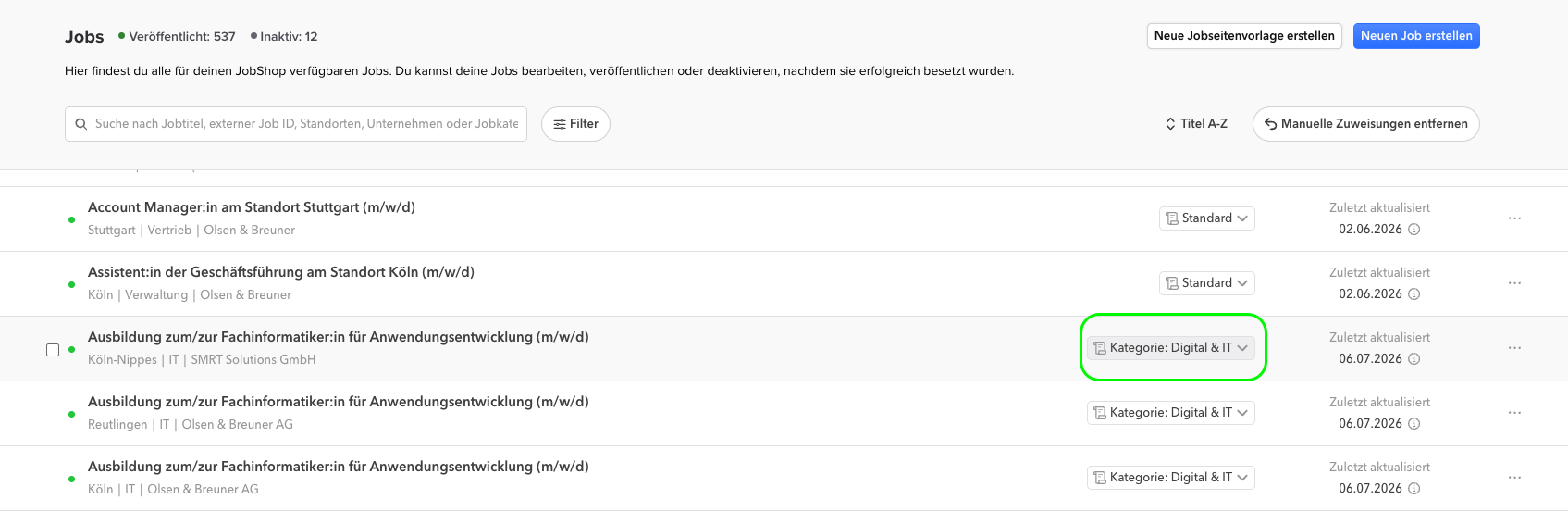
You can manually assign a single job to a template at any time. This manual assignment overrides the automatic rules. Simply go to the job list and select the desired template for the corresponding job via the dropdown menu.
Last updated: July 2026
Was this article helpful?
That’s Great!
Thank you for your feedback
Sorry! We couldn't be helpful
Thank you for your feedback
Feedback sent
We appreciate your effort and will try to fix the article