The job list is your central hub for all positions in the talentsconnect Home. Here you can search, filter, sort, edit and directly launch campaigns for positions. This article explains all features at a glance.
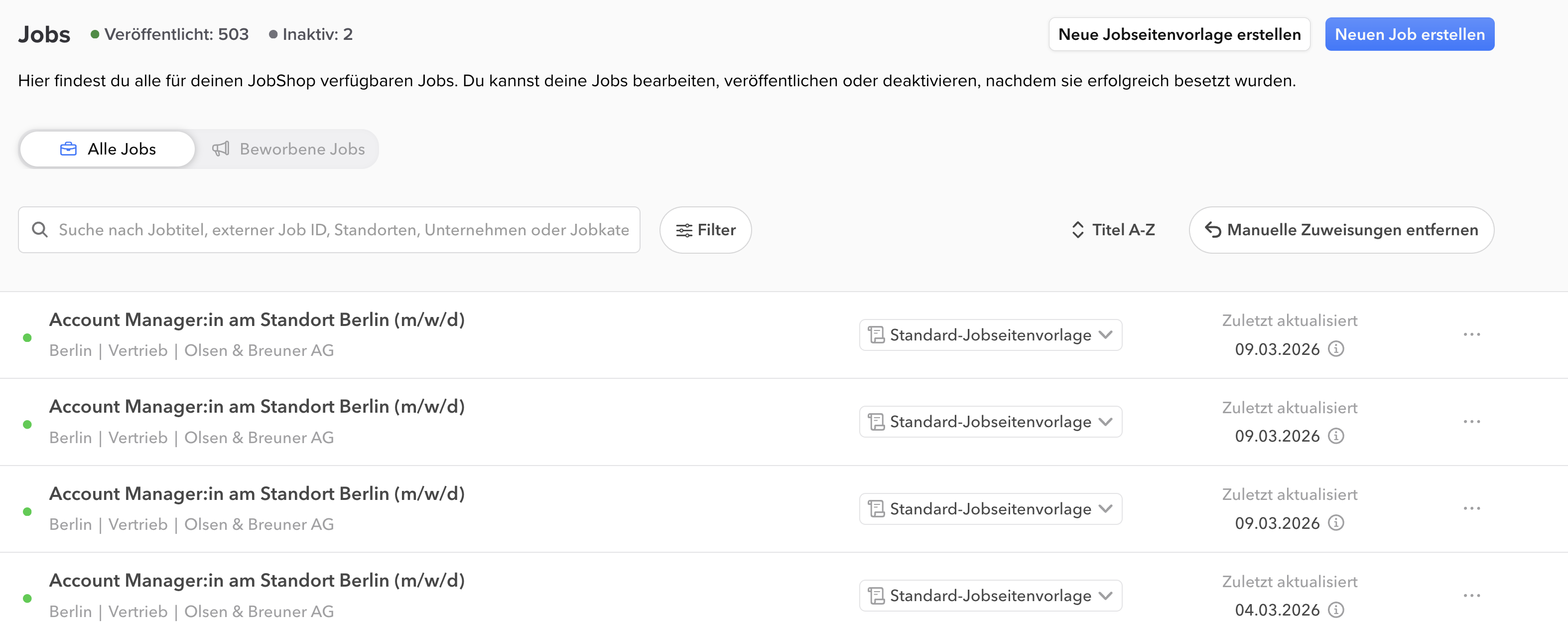
★ All jobs at a glance - Active & advertised positions in one place
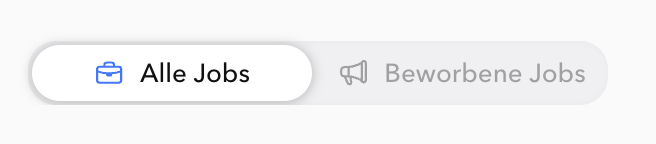
The two views: All Jobs & Advertised Jobs
The job list is divided into two tabs:
| Tab | What is displayed? |
|---|---|
| All Jobs | All published and inactive positions in your JobShop. |
| Advertised Jobs | All positions for which you currently have or have previously booked a VONQ campaign. PLEASE NOTE: This tab only becomes clickable once a first campaign has been booked via VONQ. |
Search, Filter & Sorting
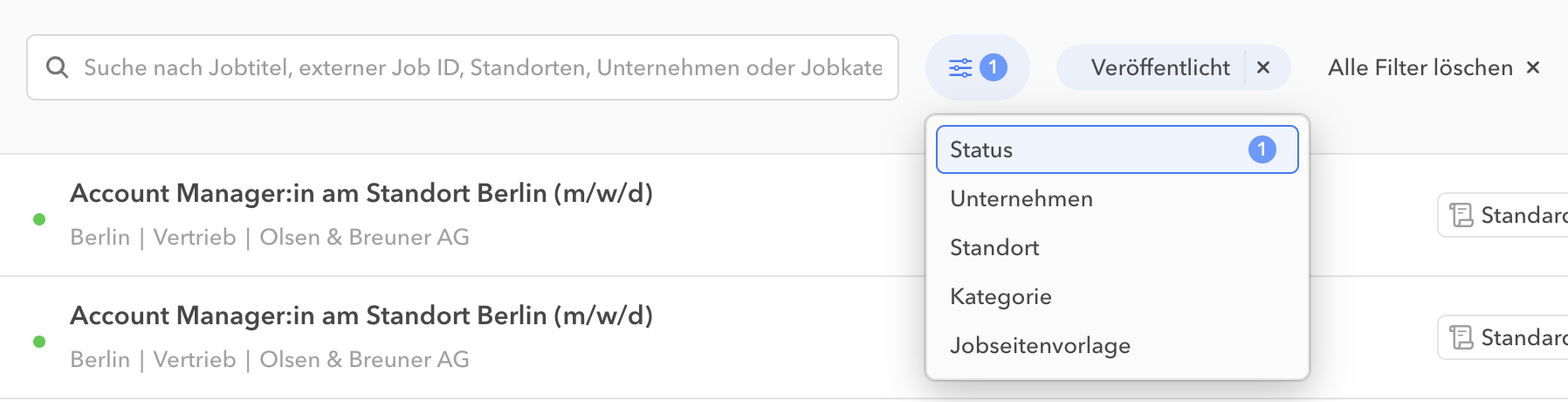
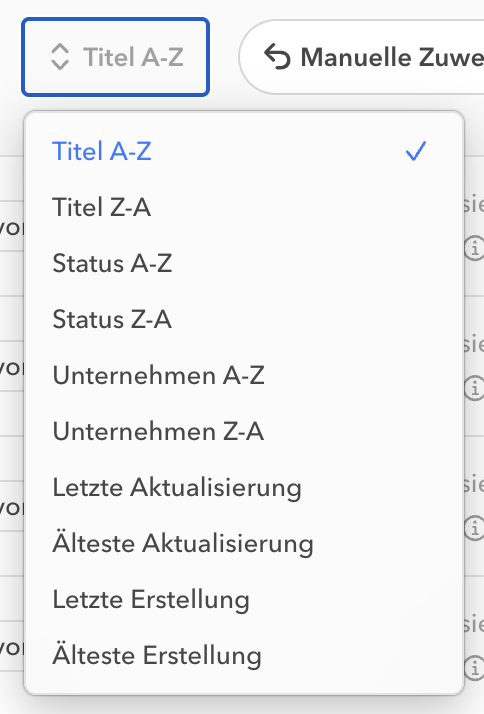
Above the job list you will find three tools for quick navigation (click on a topic to get more information):

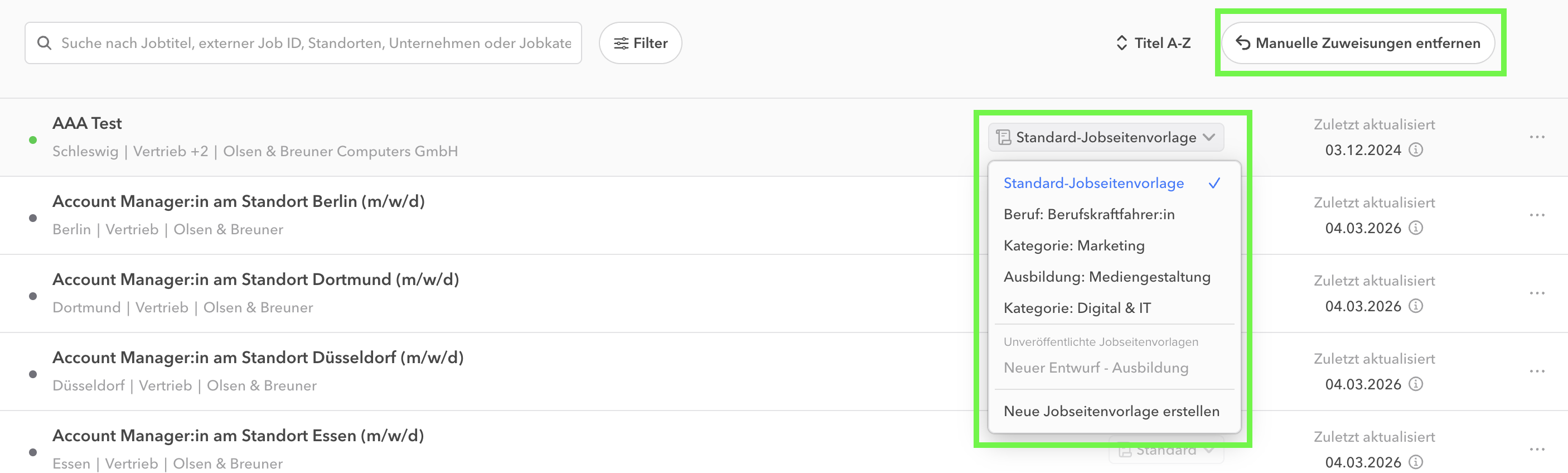
Remove Manual Assignment Button
PLEASE NOTE: In general, you do NOT need to use this button.
It is only relevant if you are setting up the new job detail pages and are in the migration process. This button removes the manual assignments of job page templates to jobs (links) that were made in the talentsconnect Home. This is only necessary if you have set up an interface configuration and want to switch the assignment from manual to automatic – your Customer Support contact will be happy to assist you with this.
For the initial creation of job page templates, this button is therefore not relevant for now, and your talentsconnect contact can guide you through the process – so as a rule, you do not need to use this button yourself.
⚠️ Warning: This action affects all positions with manual template assignments and cannot be undone individually.
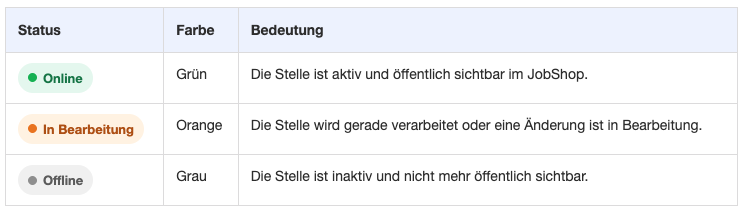
Status of Positions in the Job List
Each position in the job list shows a coloured circle directly in front of the job title. This circle shows you the current status of the position at a glance:

Actions per Position
Each position in the job list offers several action options on the right:
| Element | Action / Function |
|---|---|
Template dropdown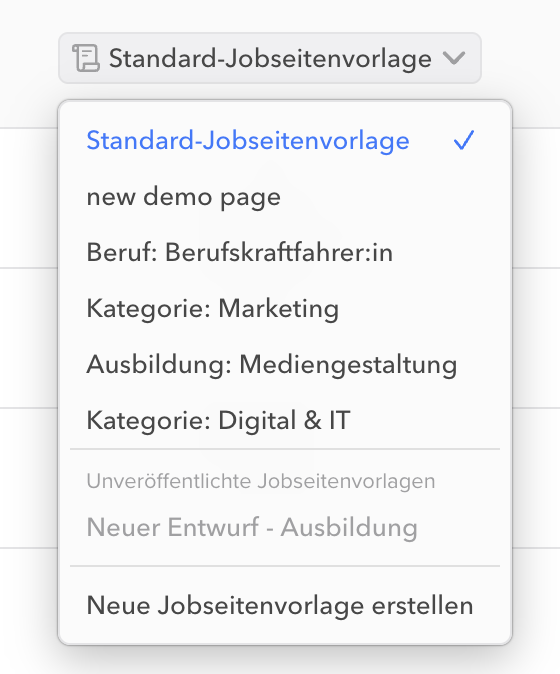 | Shows the currently assigned job page template. Here you can switch the template directly, provided you use the manual assignment of jobs to job page templates. PLEASE NOTE: This dropdown is only displayed if you already have access to the editor for the new job detail pages. You can read more about the new job pages and the associated editor here |
Megaphone icon (multiposting)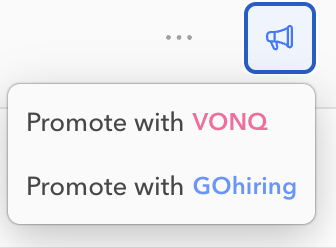 | When you hover your mouse over a job, a megaphone icon appears on the far right This serves as the entry point for multiposting – you can choose between our multiposting partners VONQ and GOhiring. Clicking "Advertise with VONQ" directly starts the VONQ campaign creation for this position within the talentsconnect Home. More information can be found at: Advertising positions with VONQ – how it works in the talentsconnect Home Clicking "Advertise with GOhiring" will redirect you to the external campaign creation at GOhiring. |
Three-dot menu (···) or right-click 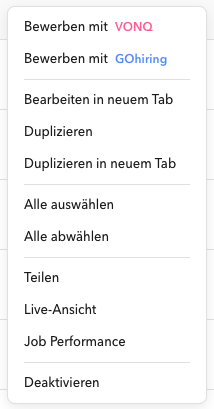 | Opens a context menu with further options such as edit, share, duplicate and more. In addition, using "Select all" it is possible to select all (filtered) jobs at once and manually assign them to a job page template. 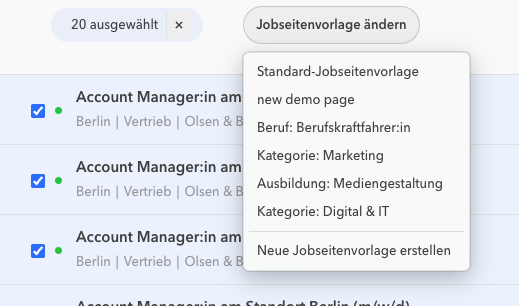 You can read more about the manual assignment of jobs to job page templates here |
Last updated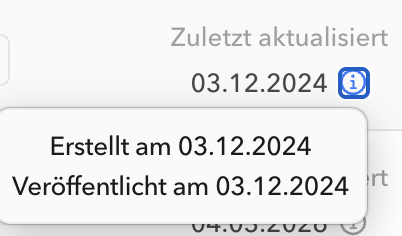 | Shows the date and time of the last change to the position / job. Via the info icon you can also view the creation and publication date. |

Frequently Asked Questions about the Job List
Was this article helpful?
That’s Great!
Thank you for your feedback
Sorry! We couldn't be helpful
Thank you for your feedback
Feedback sent
We appreciate your effort and will try to fix the article