With the VONQ integration, you can publish your jobs directly from talentsconnect Home to over 2,500 job boards and channels worldwide. This article shows you step by step how to start a campaign and keep track of everything.
Step 1 – Find the “Promote with VONQ” button
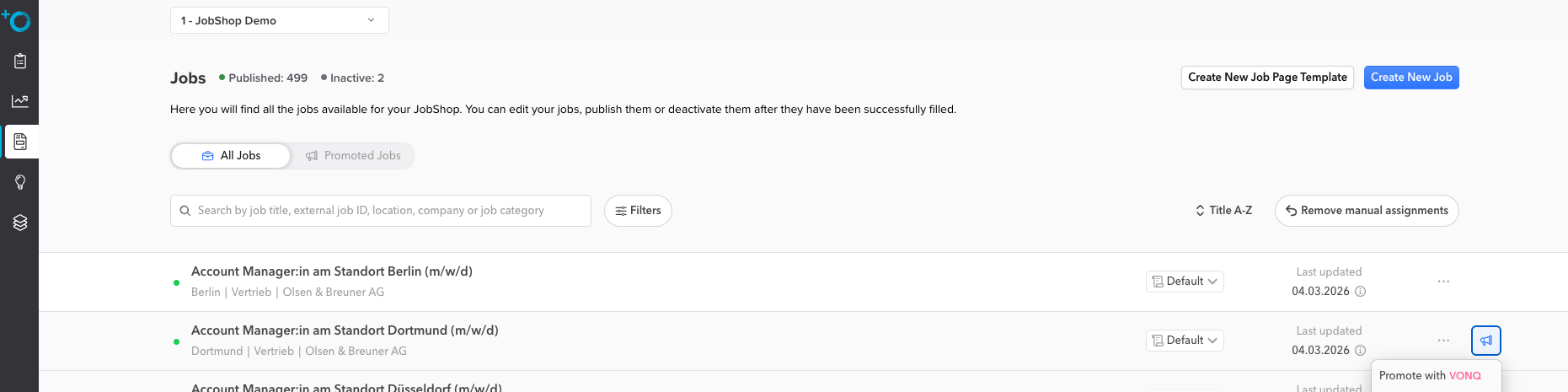
Step 2 – Select platforms
After clicking “Promote with VONQ”, the campaign creation opens. You will see an overview with recommended job boards tailored to your job and target audience.
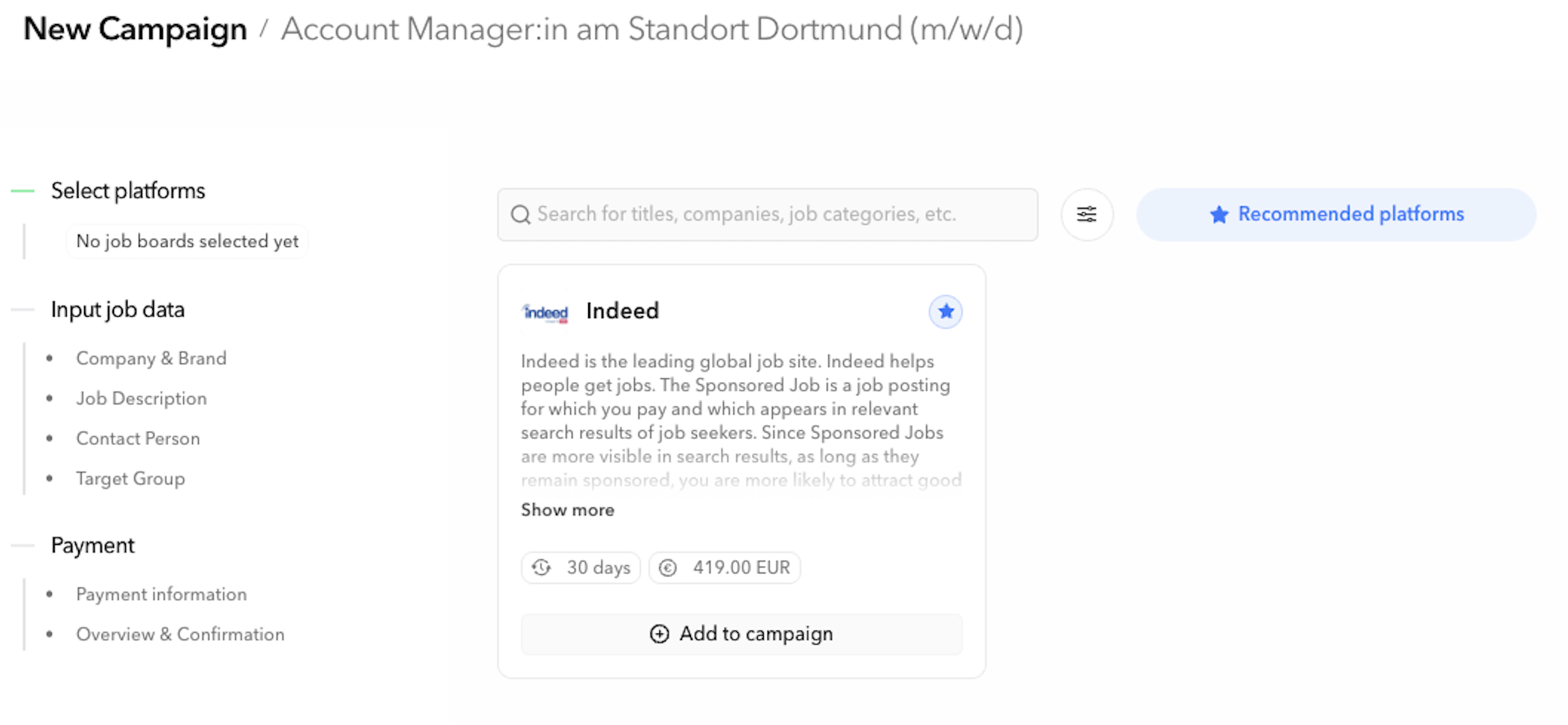
Step 3 – Enter campaign details & book
After selecting the platforms, the campaign creation guides you through the following steps:
| Step | What is being asked? |
|---|---|
| Company & Brand | Company name and employer brand for the listing |
| Job Description | Job description – automatically pulled from the JobShop |
| Contact Person | Contact person for inquiries |
| Target Audience | Target audience of the job (professional field, experience level, etc.) |
| Payment Information | Choose the payment method and enter the payment details for the booking: Important: When booking for the first time, enter a valid tax number and the correct company address to be able to complete the booking. |
| Overview & Confirmation | Summary and completion of the booking |
Step 4 – Keep track of campaigns
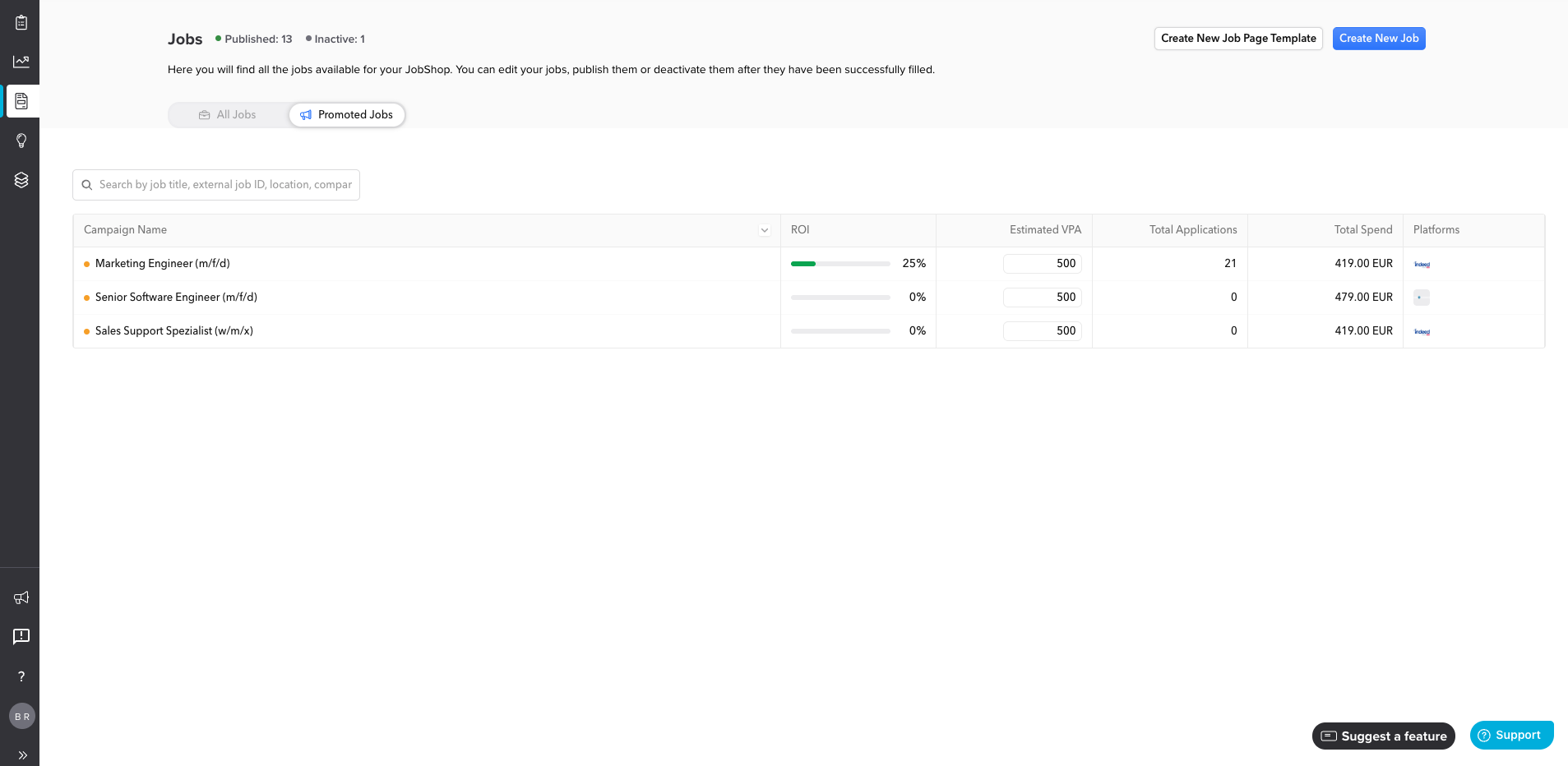
After booking, you can find all running and completed campaigns under Jobs → “Promoted Jobs”. At a glance, you can see:
| Column | What does it mean? |
|---|---|
| Campaign Name | Name of the promoted job / Individually assigned campaign name |
| ROI | Return on Investment – percentage value showing how well the campaign performs (green bar = positive) Calculation: Estimated Value per Application (VPA) x Number of applications from the campaign / Total campaign costs |
| Estimated Value per Application (VPA) | Estimated cost per application (Value per Application) |
| Total Applications | Total number of applications received through this campaign |
| Total Spend | Total spend for the campaign in EUR |
| Platforms | The booked job boards (displayed as logos) |
Frequently Asked Questions about VONQ
Was this article helpful?
That’s Great!
Thank you for your feedback
Sorry! We couldn't be helpful
Thank you for your feedback
Feedback sent
We appreciate your effort and will try to fix the article