For your jobs to be displayed correctly, each job must be assigned a job page template. This link is either created directly and manually in talentsconnect Home and can be done for individual jobs as well as for multiple jobs at the same time, or through automatic rendering.
The following article describes the process for manual linking:
Link a single job to a job page template (step by step)
1. Open talentsconnect Home.
2. Click on "Jobs" in the left sidebar.
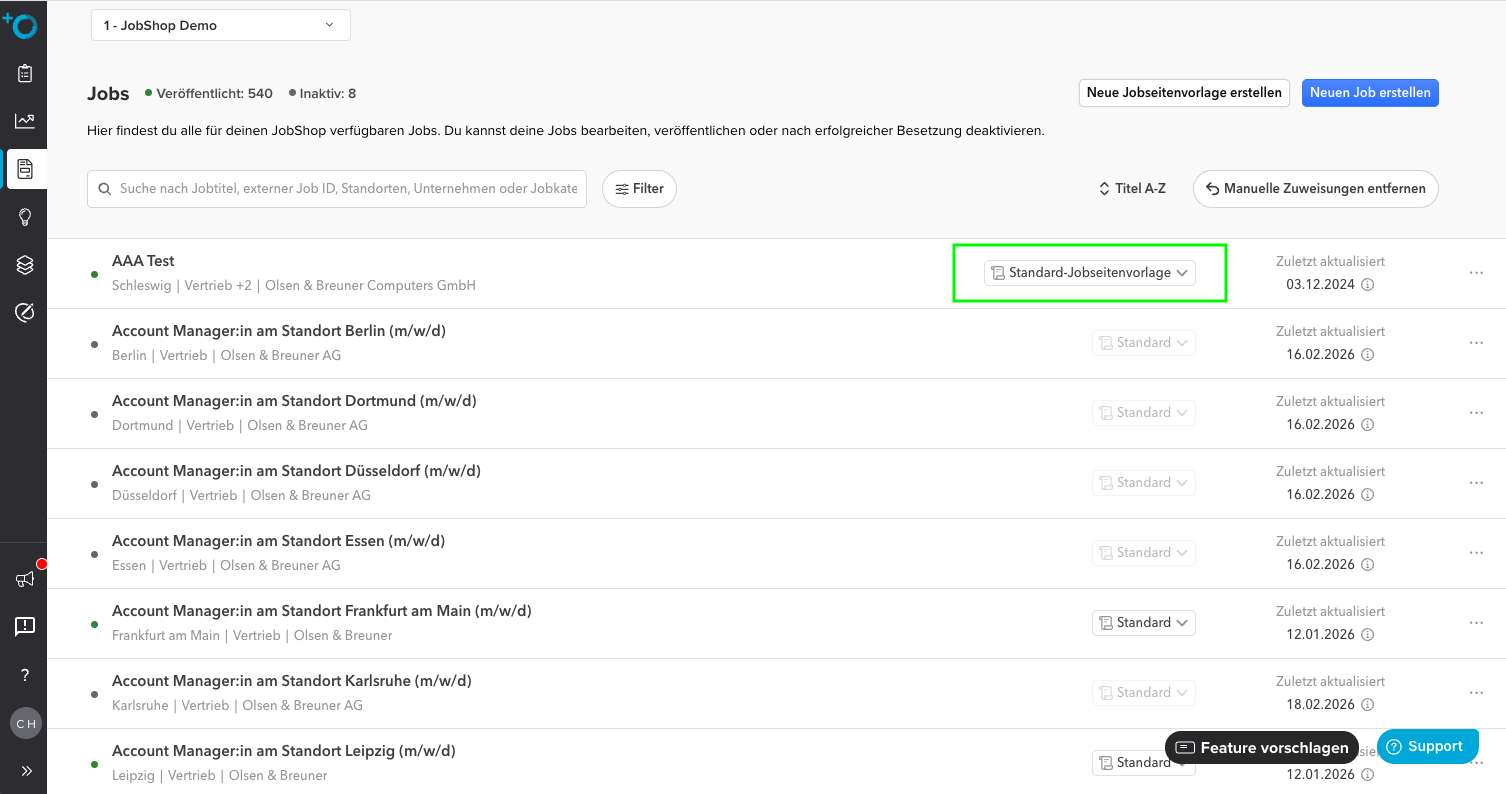
3. In the second-to-last column on the right, you will find a dropdown menu for each job.
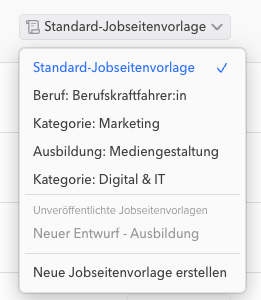
5. Select the desired job page template here.
6. The selected template will be immediately assigned to the respective job ✔
Assign multiple jobs at once (bulk assignment)
If you want to assign the same job page template to many jobs, you can do this all at once:
1. Open the "Jobs" section in the sidebar.
2. Use the filter functions (e.g. by category or location, etc.) to narrow down the relevant jobs. Multiple criteria can also be selected.
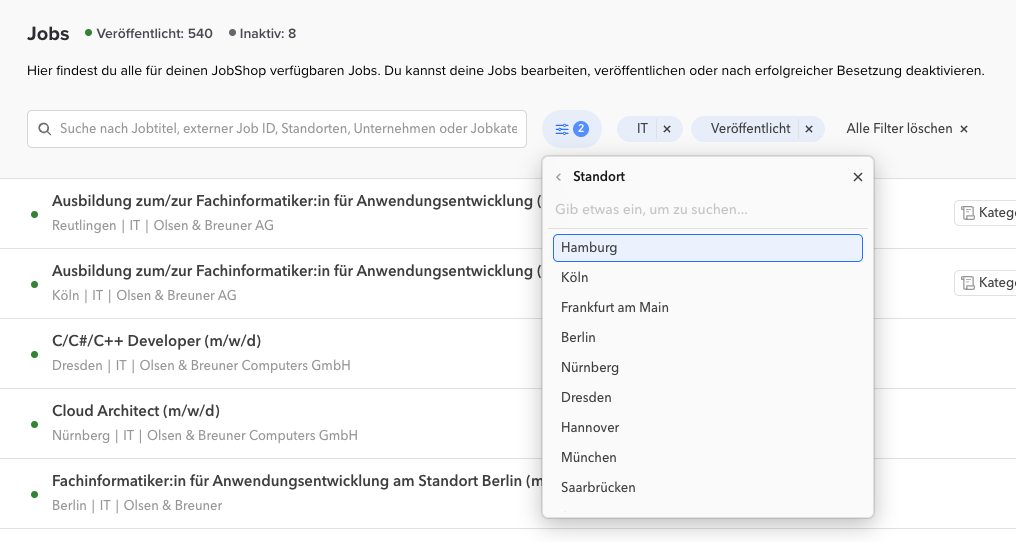
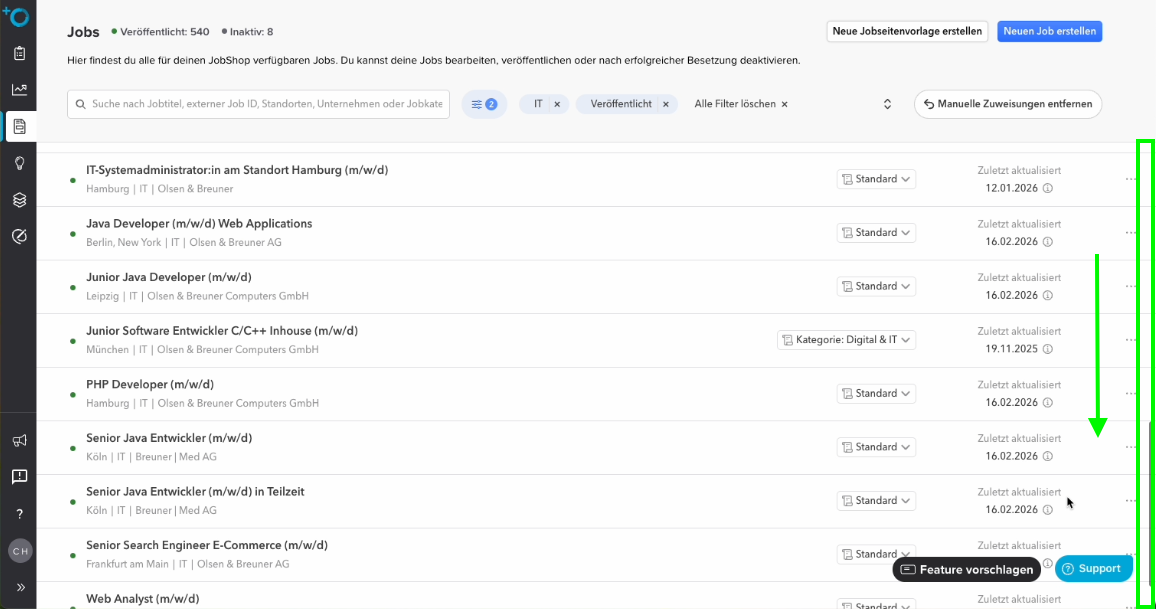
3. Make sure that all desired jobs are loaded:
If more than 20 jobs are available, scroll to the bottom of the list until all required jobs are visible.
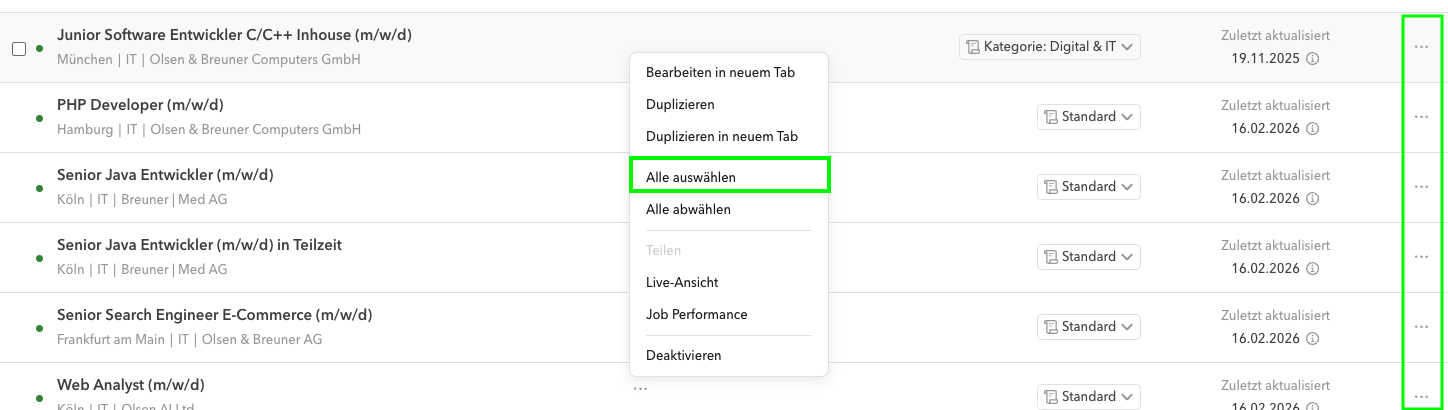
4. Open the context menu by right-clicking on a job or via the three-dot menu on the right side of the page and activate "Select all".
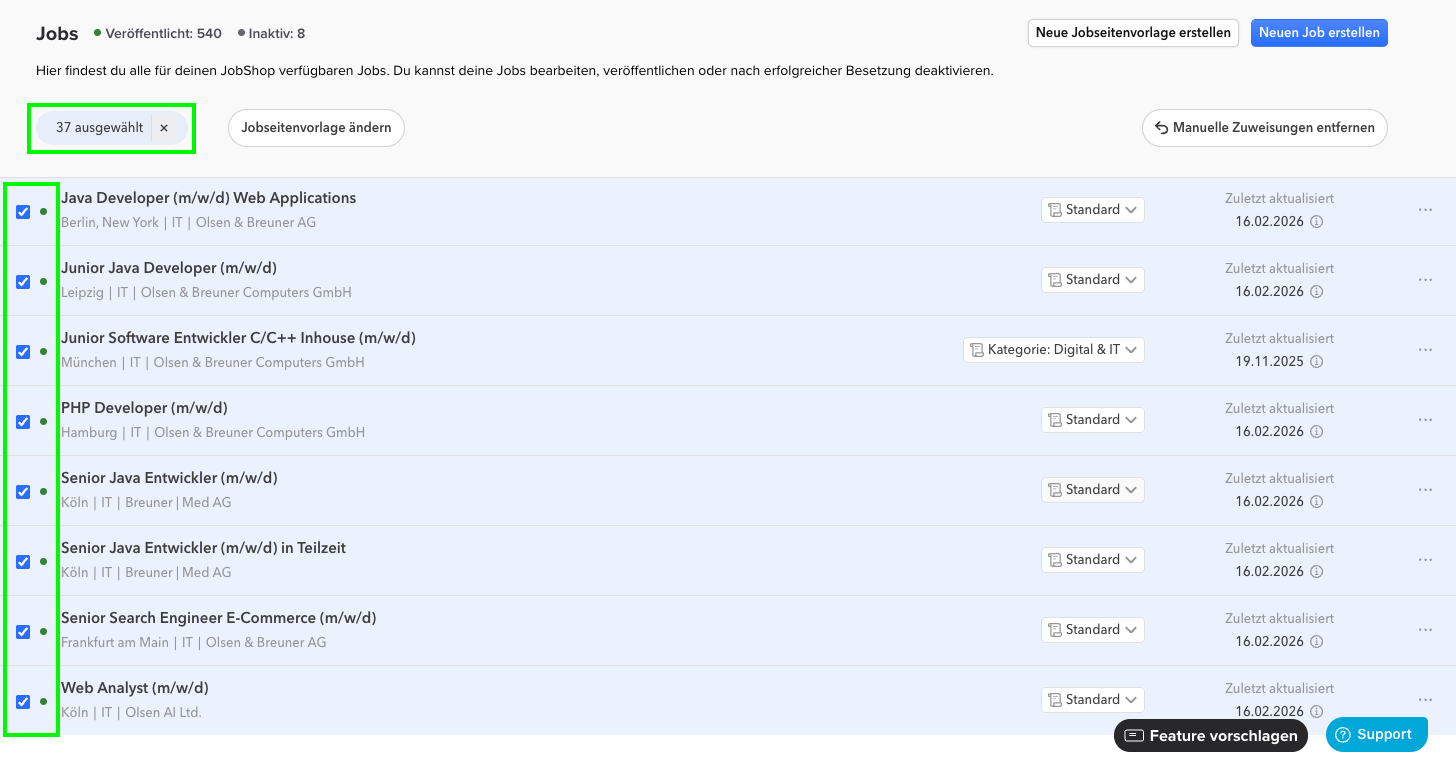
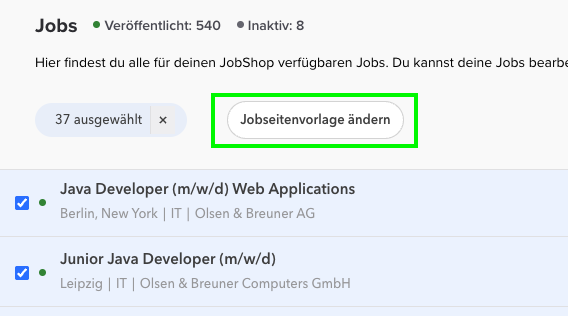
5. After making your selection, the "Change job page template" button will appear.
6. Select the desired job page template.
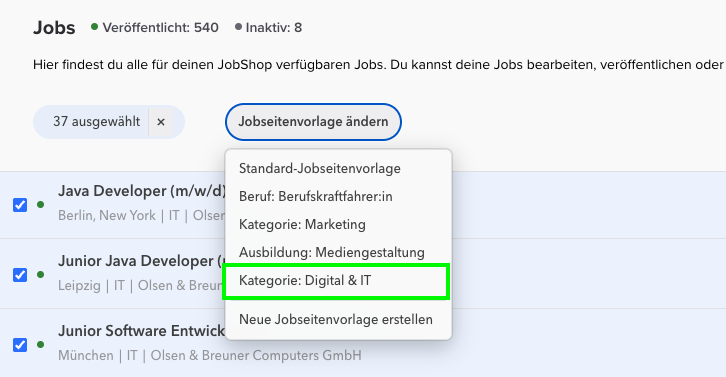
7. Confirm your selection – the template will be assigned to all selected jobs ✔
Create a new job page template
If no suitable job page template exists yet, you can create a new template at any time and then assign it directly to one or more jobs. This can be done directly via the "Create new job page template" button or in the selection dropdown at the very bottom.
Important to know
The assignment is always per job, but can be done efficiently using multiple selection.
For bulk assignment, all jobs must be visible and loaded.
A job page template can be used for any number of jobs.
Was this article helpful?
That’s Great!
Thank you for your feedback
Sorry! We couldn't be helpful
Thank you for your feedback
Feedback sent
We appreciate your effort and will try to fix the article