What is the Google Search Console?
The Google Search Console (GSC) is a free tool that can be used to optimize the visibility of a website in Google search results. It is considered one of the free basic tools of search engine optimization and provides insights into:
- Visibility: How often is a website displayed in Google search results and for which keywords does it rank?
- Issues: Crawl errors, indexing problems, and security concerns.
- Links: Which websites link to your own website?
- Structured data: How is the website displayed in search results?
Using the GSC, visibility in search results can be improved, resulting in more and more targeted traffic to your own website.
What does the Google Search Console do for my JobShop?
The Google Search Console (GSC) gives you deeper insights into the visibility and performance of your JobShop in Google Search. While talentsconnect Home provides detailed data about traffic within your JobShop, the GSC shows you what happens before the click – i.e. how users become aware of your JobShop in the first place.
This allows you not only to uncover problems, but above all to specifically increase reach and the number of applicants.
The most important benefits at a glance:
- Better visibility on Google
See which search terms your JobShop appears for – and find out whether you are being found for the relevant keywords. - Improve traffic quality
Analyze whether your job pages are being shown to the right target audiences, and derive measures to optimize your content accordingly. - Technical security & reliability
Make sure Google finds and indexes your pages correctly. You can identify error messages or issues (e.g. mobile display, loading times) directly. - Faster indexing of new job listings
With a sitemap, you inform Google immediately about new job pages. This increases the chance that your jobs will appear promptly in Google Search and in Google Jobs. - Measure the success of Google Jobs
Check how your job listings perform in the dedicated Google Jobs feature – and whether your reach there is growing.
With the Google Search Console, you get not only an early warning system for technical issues, but also a strategic data foundation to continuously optimize the traffic and conversion of your JobShop.
Manual: Setting Up the Google Search Console
Step 1: Open the Search Console
Go to https://search.google.com/search-console/
- Click the "Start now" button
- Sign in with the desired Google account.
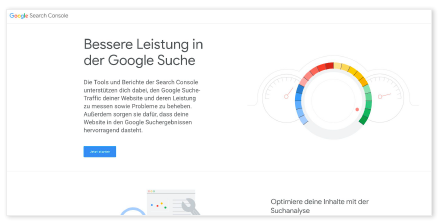
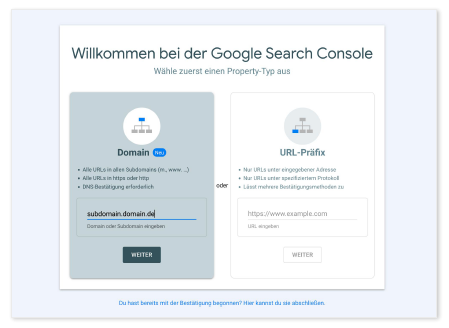
Step 2: Enter the domain
In the left column under Domain, enter the (sub-)domain of the JobShop without https://
.
Note: For more complex domain structures, e.g. the
use of subdirectories, the right-hand option "URL prefix" can also be used
in special cases. This offers
various verification methods to choose from.
Step 3: Select the CNAME method
There are two verification methods. Please select "CNAME" from the dropdown:
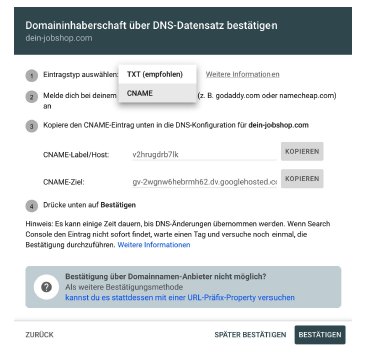
Step 4: Create a DNS record
As described by Google, log in to your domain provider
- Add a CNAME record for this exact subdomain in the DNS settings
- Enter the values for the CNAME host and target shown in the Google window and save
Hostname format: host.subdomain.domain.tld (e.g. v2hrugdrb7lk.your-jobshop.com or for subdomains v2hrugdrb7lk.your-jobshop.com)
Target: as specified (e.g. gv-2wgnw6hebrmh62.dv.googlehosted.com)
Feel free to lower the TTL for potential troubleshooting
Step 5: Verify domain ownership
--> return to the Search Console
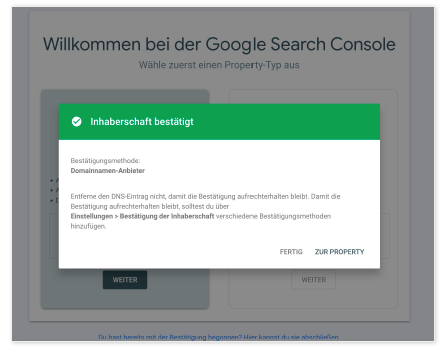
- Use the "Verify" button at the bottom right to check whether the DNS record has been set correctly.
- If the settings are correct, the confirmation overlay will appear immediately → switch to the property
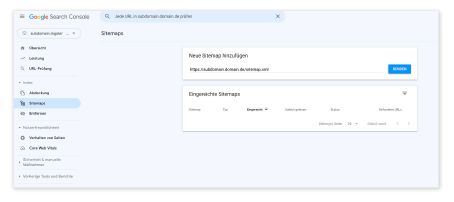
Step 6: Add a sitemap and trigger crawling
Click on Sitemap in the left sidebar
- Under "Add a new sitemap", enter the URL of the JobShop sitemap (including https).
- Submit
- Google checks the sitemap at regular intervals for changes and crawls the new pages.
Step 7: Share the Google property with talentsconnect
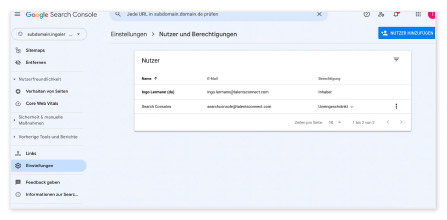
Click on Settings in the left sidebar
- Open Users and permissions
- Click the "Add user" button in the top right and add the talentsconnect email address searchconsole@talentsconnect.com .
- Ideally grant unrestricted access
Conclusion
The Google Search Console is far more than just a technical helper tool. It gives you transparency about how visible your JobShop really is, whether your content appears for the right search terms, and whether Google is processing your pages optimally. At the same time, it provides you with concrete suggestions on how to increase your reach and traffic quality – right through to performance in Google Jobs.
In short: with the GSC, you combine technical monitoring with valuable insights for your recruiting strategy.
The result: more visibility, more suitable applicants, and a continuously better-performing JobShop.
Was this article helpful?
That’s Great!
Thank you for your feedback
Sorry! We couldn't be helpful
Thank you for your feedback
Feedback sent
We appreciate your effort and will try to fix the article