The Job Text Field is a central module of the new job detail page. It automatically loads all relevant text content for a specific job and displays it dynamically on the page.

What does the Job Text Field do?
The module accesses the job information stored in your Applicant Tracking System (ATS) or in talentsconnect home. This includes, among other things:
Tasks
Requirements
Offer and benefit texts
Other job-related content
The content is loaded and updated automatically – without any manual maintenance per job.
Data Field Selection in the Right Sidebar
In the right sidebar, you will find the "Data Field" option within the Job Text Field.
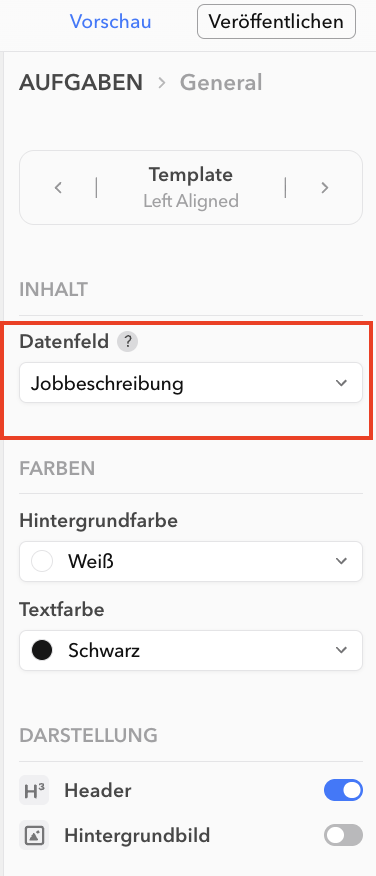
Here you can specify which type of job text should be displayed in the module.
Selectable data fields include:
Introduction
About us
Job description
Expectations
Offer
Contact information
Additional information
For example:
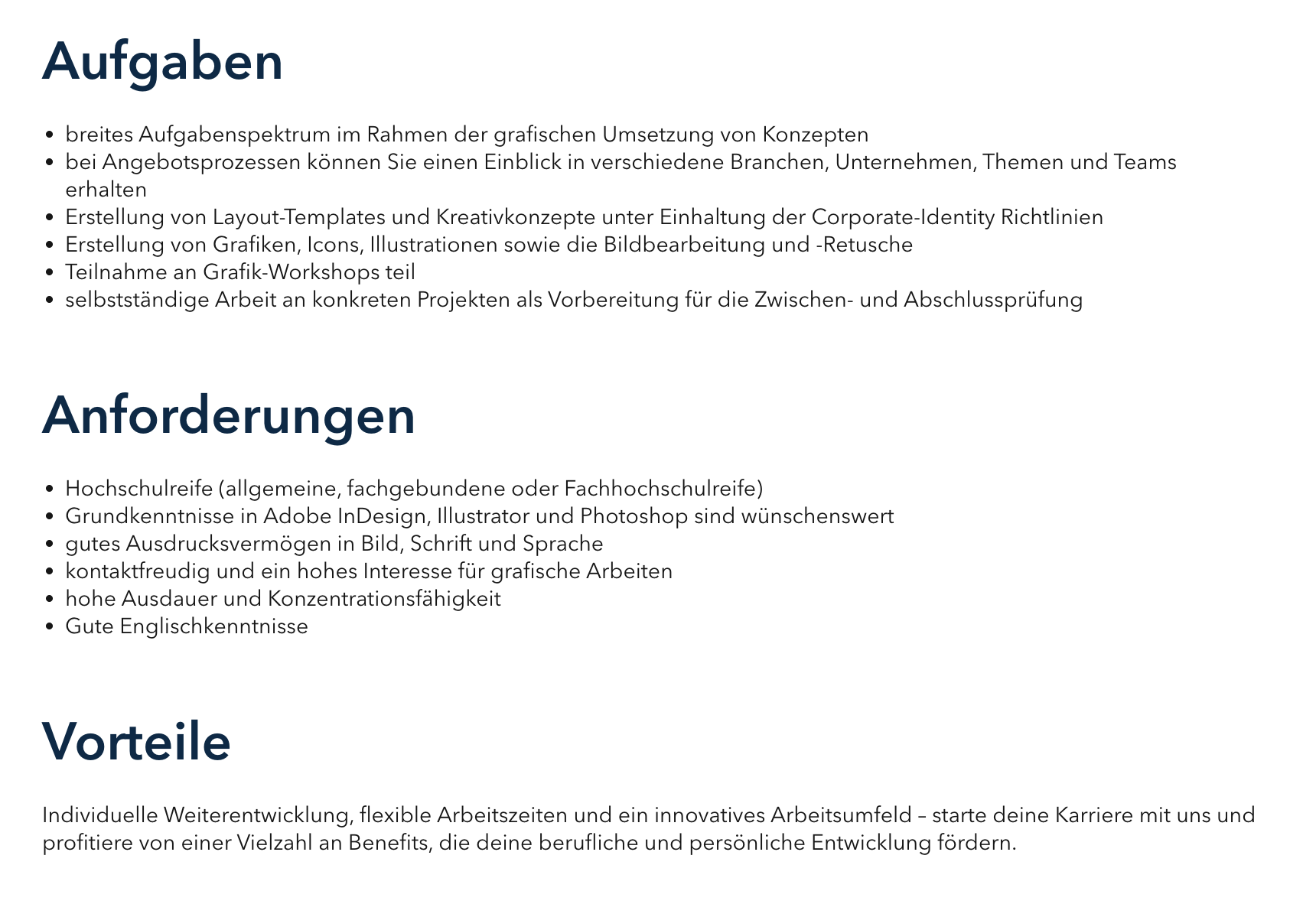
Which specific content appears in which field depends on the mapping in the interface to your applicant tracking system.
Important Note on Mapping
The data field may be empty if:
no data has been transferred from the applicant tracking system, or
the corresponding field has not yet been set up.
The data transfer is based on an individually configured mapping between your ATS and the job text fields available in talentsconnect home.
Example:
It is possible that all job texts delivered via the interface have been mapped to a single selectable field for the JobShop. In this case, the selectable content in the editor does not differ in substance.
Checking Content with the Job Preview Mode
Use the Job Preview Mode to check:
which content has already been successfully transferred
how different data field selections affect the job detail page
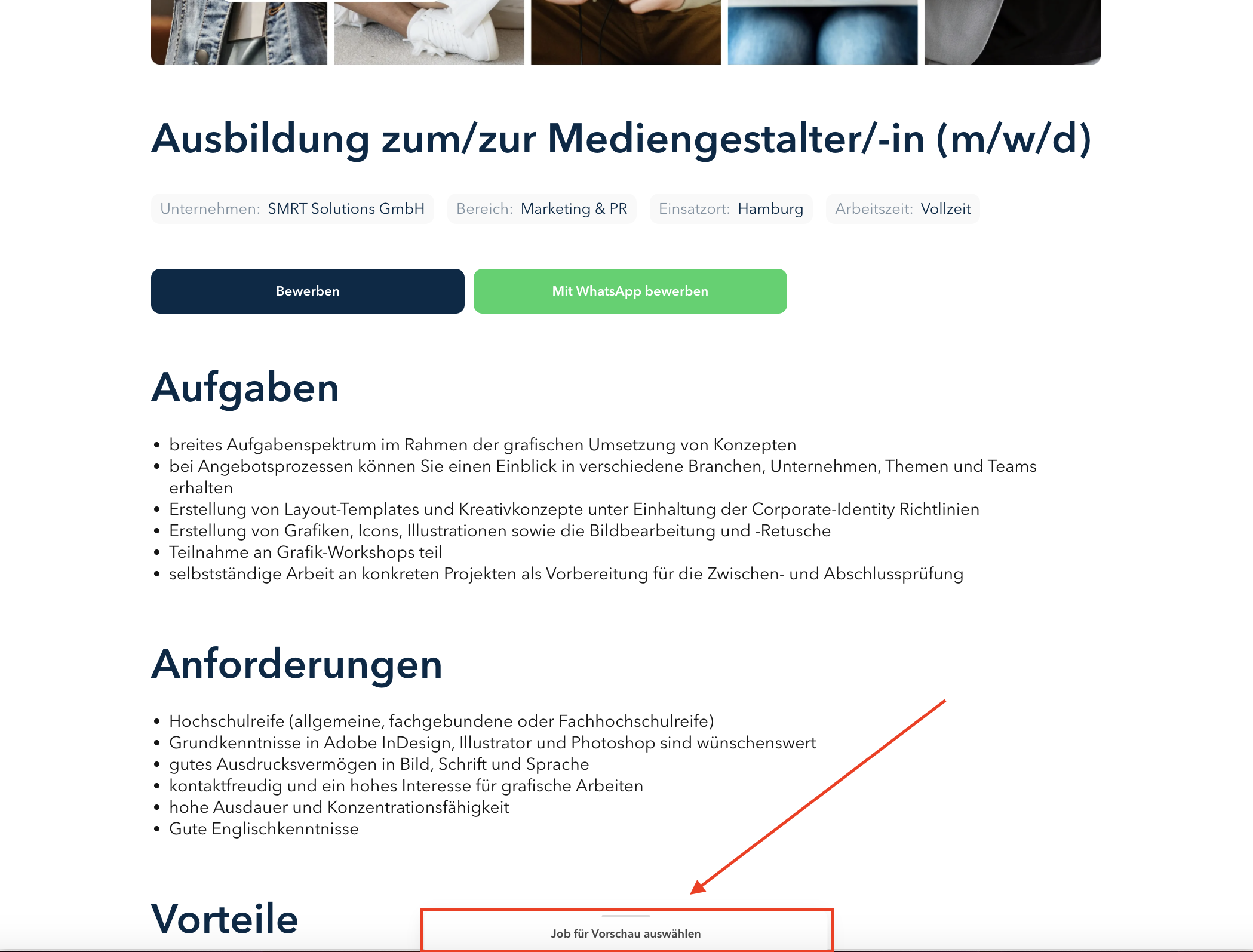
This allows you to quickly see whether the mapping has been set up correctly.
Changes to the Mapping
If content needs to be adjusted, added, or mapped differently, please feel free to contact:
your Customer Success Manager or
the Support Team
They will assist you in optimizing the interface and the mapping.
Was this article helpful?
That’s Great!
Thank you for your feedback
Sorry! We couldn't be helpful
Thank you for your feedback
Feedback sent
We appreciate your effort and will try to fix the article