Media Slideshow
General Introduction
The Media Slideshow gives you the ability to flexibly place your content with striking visuals and compelling text on your homepage. Multiple slides with images, text and/or video invite your candidates to learn more about your employer brand. The Media Slideshow can also be placed anywhere on your homepage and works great as a carousel at the very top of your homepage.
Display
Media Slider - Image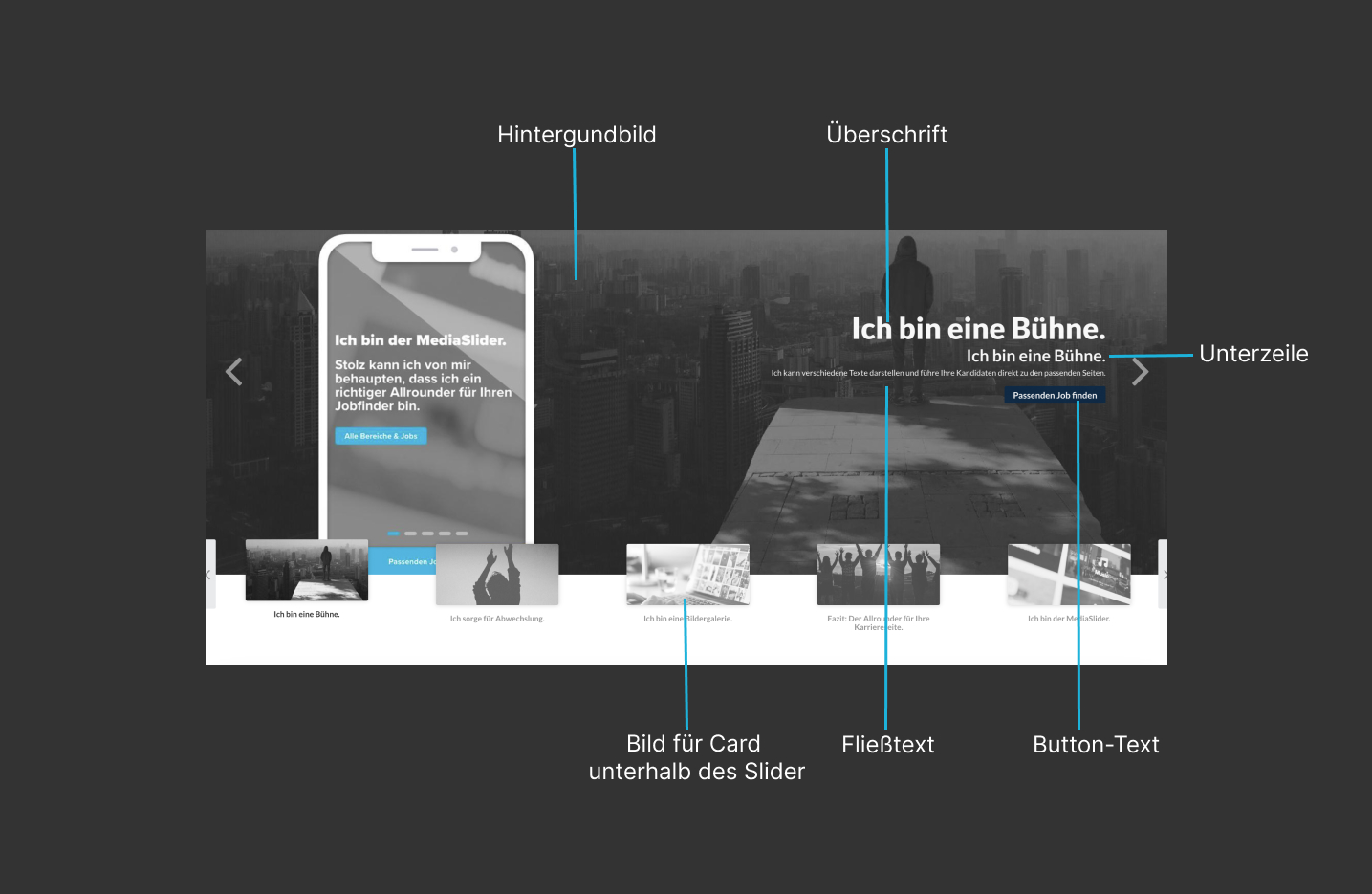
Media Slider - Video

Editing in talentsconnect home
| Field name | Description |
|---|---|
| Internal title (required) | This title is not displayed in the JobShop. The title is only visible to you and helps you organize, sort and edit the various content modules. |
| Show example | These images show examples of the visual appearance of the content module and serve as guidance and assistance for creating and editing such a content module. |
| Add slide | Add as many slides as you like with exciting content for your candidates to your Media Slideshow. Alternatively, you can also add new slides via the left sidebar by clicking the +. All slides already created for this content module can also be found in the left sidebar. |
| Display options for slideshow | By default, the created slides are displayed with dots. Alternatively, cards can also be displayed below the Media Slideshow for greater visibility of the individual clickable slides. Options:
|
| Show title for cards | If "Cards" has been selected as the display option, the titles of the slides can additionally be displayed below the cards. This helps candidates better understand what content to expect when selecting a slide. |
Was this article helpful?
That’s Great!
Thank you for your feedback
Sorry! We couldn't be helpful
Thank you for your feedback
Feedback sent
We appreciate your effort and will try to fix the article