Clicking the gear icon in the upper left corner of the page opens the general settings. These settings allow you to customize various aspects of your JobShop to your preferences:
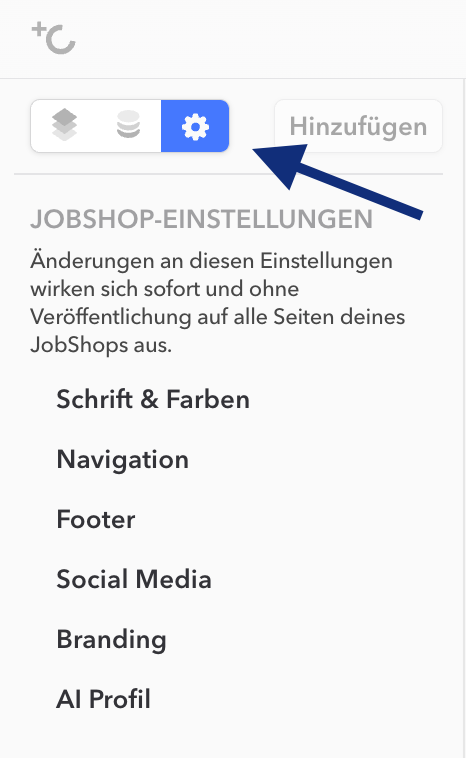
Font & Colors
Here you can select the font used for all text elements and define the colors that determine the appearance of your JobShop. These customizations ensure that your JobShop is not only functional, but also visually aligned with your brand identity.


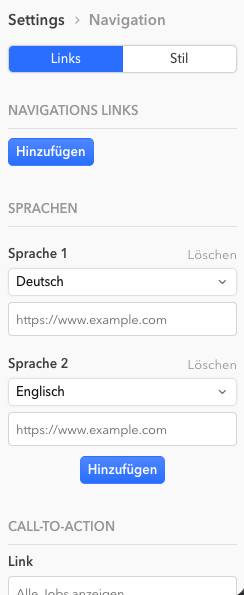
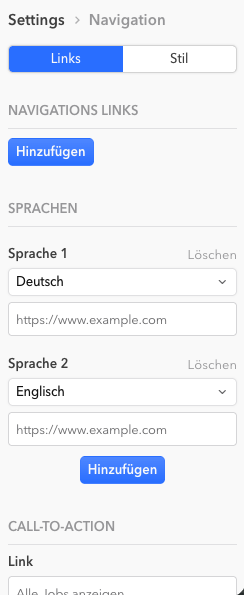
Navigation
In this section you can customize the navigation area individually. Here you have the option to adjust the style of the links and add various links to be displayed in the navigation bar. These links can point to internal pages such as About Us, other JobShops, or Contact. By adding and arranging these links, you can ensure that the most important areas and information are easily accessible to applicants. A well-structured navigation improves usability and allows users to find the desired information quickly and efficiently.
Footer
Here you have the option to add important legal information such as the imprint and privacy policy, in order to meet legal requirements and ensure transparency.
Social Media
In this section you can add the URLs of your social media channels. These links are then displayed in the footer of the page, allowing applicants to navigate directly to the company profiles on platforms such as Facebook, X (Twitter), LinkedIn, or Instagram. Linking your social media channels increases your reach and strengthens your online presence.


Branding
The logo is displayed prominently in the navigation bar, keeping the brand identity visible on every page. The favicon, a small icon that appears in the browser's address bar and on tabs, also contributes to brand recognition.

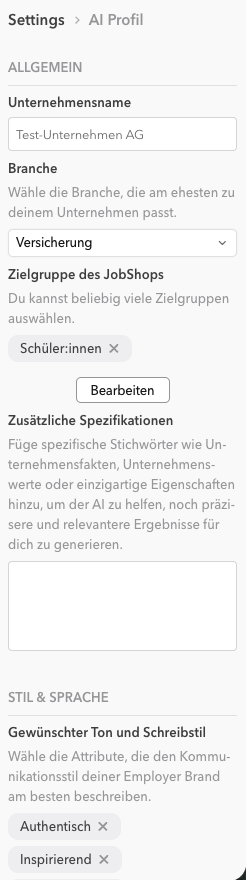
AI Profile
In the AI Profile you store the information that the AI uses when creating content for your JobShop – for example, texts for job pages and career pages. This allows the AI to generate content that suits your company, your industry, and your target audience, rather than generic standard texts.
Page Settings
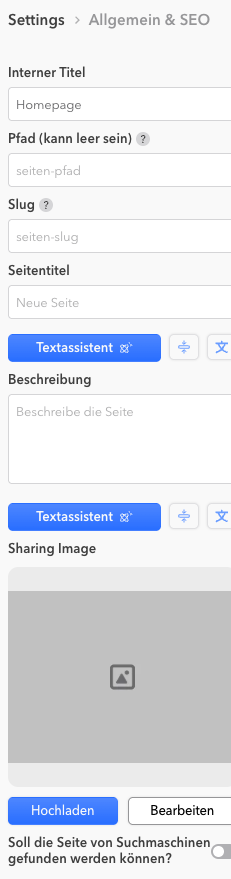
General & SEO
Targeted SEO measures ensure that the JobShop is more easily found by potential applicants.
You can also add a Social Sharing Image here. This image is displayed when the JobShop is shared on social networks. An appealing Social Sharing Image increases the likelihood that shared content will receive more attention and clicks.
As of: August 2026 ✦ Language: English
Was this article helpful?
That’s Great!
Thank you for your feedback
Sorry! We couldn't be helpful
Thank you for your feedback
Feedback sent
We appreciate your effort and will try to fix the article