Overview with Cards
General Introduction
With this content module, you can easily place links to your job categories or company departments. The cards help candidates dive deeper into the content of your JobShop and provide a first overview of your job offerings. The content module is often displayed after the hero element on home pages in the JobShop.
Display

Editing in talentsconnect home

| Field name | Description |
|---|---|
| Internal title (required) | This title is not displayed in the JobShop. The title is only visible to you and helps you organize, sort, and edit the various content modules. |
| Show example | These images show the visual appearance of the content module as an example and serve as guidance and assistance for creating and editing such a content module. |
| Heading | When this content module is placed at the very top of your home page, the heading is used as an H1 heading. Therefore, this heading should contain all important keywords (e.g. "Find your job at Company XYZ"). This ensures that your candidates as well as search engines can correctly categorize the content of the home page and your JobShop. |
| Body text | Also refer to the examples for the content module to better understand where this text is displayed in the card. Recommended: max. 250 characters |
| Add card | Add as many cards as you like to your overview, e.g. for links to job categories. Alternatively, you can also add new cards via the left sidebar by clicking the +. All cards already created for this content module can also be found in the left sidebar. |
| Number of cards side by side | Depending on your selection, either 3 or 2 cards will be displayed side by side in a row. Additional rows follow below. When selecting 2 cards side by side, the individual cards are displayed wider. Options:
|
| Show card titles | This setting determines whether the title should always be displayed uniformly for all cards (activation recommended). |
| Show card short description | This setting determines whether the stored short description should always be displayed uniformly for all cards. |
| Show card button | This setting determines whether the button should always be displayed uniformly for all cards (activation recommended). Even without displaying the button, the stored link can be used by clicking on the card. |

| Field name | Description |
|---|---|
| Internal title (required) | This title is not displayed in the JobShop. The title is only visible to you and helps you organize, sort, and edit the various content modules. |
| Show example | These images show the visual appearance of the content module as an example and serve as guidance and assistance for creating and editing such a content module. |
| Card title (required) | Also refer to the examples for the content module to better understand where this text is displayed in the card. Recommended: max. 100 characters |
| Short description on card | Also refer to the examples for the content module to better understand where this text is displayed in the card |
| Image for card (required) | The file size of the image should be as small as possible so that the page loading speed is not affected (<100kb). The image can be uploaded in any size. It is recommended to use a resolution of 740 x 300 pixels. After upload, the image is automatically cropped to the size specified here. If the uploaded image has a higher resolution than specified here, you can still edit the image crop after uploading. |
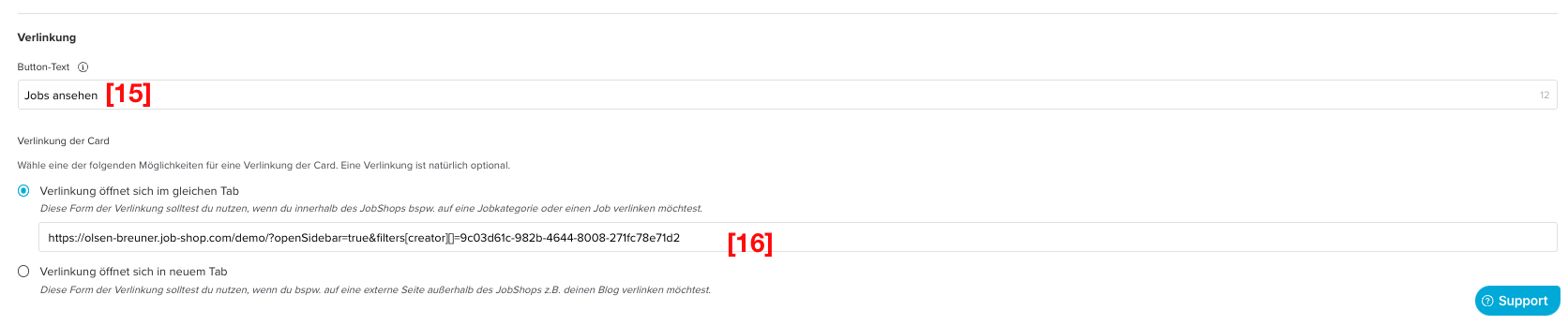
| Button text | The text of the button should clearly describe the action that candidates can expect when clicking. The text should be as short and concise as possible (e.g. "Join now", "Learn more", etc.). Recommended: max. 30 characters |
| Button link | Choose one of the following options for linking the card. A link is of course optional. If you do not select a link, no button will be displayed for it. Options:
|
Was this article helpful?
That’s Great!
Thank you for your feedback
Sorry! We couldn't be helpful
Thank you for your feedback
Feedback sent
We appreciate your effort and will try to fix the article